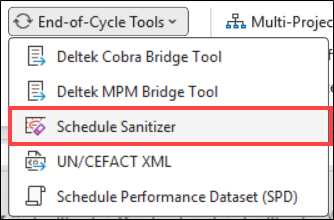
Overview
The SSI Schedule Sanitizer is a tool built to help users remove nonessential/unnecessary, and/or proprietary data from a Microsoft Project schedule file prior to sending it to an outside organization. Every organization should require Project Schedulers to, at a minimum, remove any proprietary information from a Project file prior to transferring the file to an outside entity. The SSI Schedule Sanitizer makes the process of removing this data quick, easy. The tool allows users to save and distribute sanitization configurations which can be easily applied at any time.
Definitions
-
Nonessential/Unnecessary Data –Data that exists in the Project file that provides no additional value to the organization receiving the project file, but is not considered to be sensitive or secret to the user’s internal organization.
-
Proprietary Data - Data that exists in the Project file that is considered to be sensitive, confidential, or secret to the user’s internal organization. An example of proprietary information may be rates for individual resources.
-
Sanitizing the Schedule – The process of removing nonessential and/or proprietary data from the schedule file. This is also referred to as Schedule Sanitization.
-
Task Items – Task items are data in the schedule held at the task level. Each task can have unique values for these items. An example of a Task Item is a Task Field such as Text1-30.
-
Resource Items – Resource items are data in the schedule held at the resource level. Each resource can have unique values for these items. An example of a Resource Item is the Standard Rate applied to a resource.
-
Project Items – Project items are data in the schedule held at the project level. Each Project may have different data for these items. An example of a Project Item is a custom view that exists only in that project.
Important Notes
The SSI Schedule Sanitizer has the ability to remove resource assignments from tasks and/or resources from the Project's Resource Sheet. It's important to know that deleting resource assignments or resources from the resource sheet can potentially change start/finish dates and/or duration values on tasks in the schedule. When running, the SSI Schedule Sanitizer performs many functions to ensure tasks remain consistent with their pre-sanitized dates and duration to the best extent possible, however in some schedules it is not possible to remove resources from tasks and keep them consistent with their original values. Following general scheduling and Microsoft Project best practices and conducting regular schedule quality control checks is the best way to avoid any unwanted changes to tasks post-sanitization.
It is highly recommended that the sanitization is performed on a copy of the project file, not the live file because the sanitization process will remove data from the file. If the sanitization process were to occur on the live file, any changes to the project file are not saved until user actually saves the file.
Sanitizing The Schedule
To sanitize the active project file, complete the following steps:
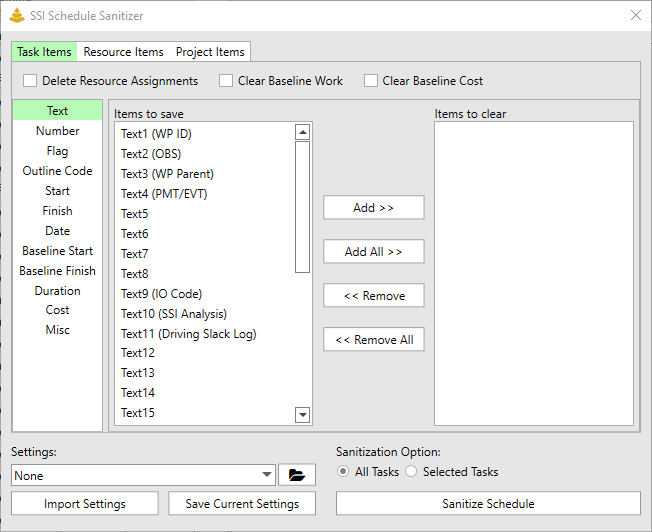
1. Select the desired items to be sanitized in each of the tabs in the SSI Schedule Sanitizer form. This can be performed manually or by selecting an existing settings configuration. Even after a settings configuration has been selected, users can change what items are to be sanitized prior to sanitizing the schedule.
2. Choose the desired Sanitization Option (Sanitize all tasks or selected tasks).
3. If desired, save the current sanitization configuration by clicking Save Current Settings.
4. Click the Sanitize Schedule button.
While the sanitization process is running, a progress message and progress bar will be displayed to the user in the center of the SSI Schedule Sanitizer user form.
Once the sanitization process is complete, one of the following messages will be displayed:
· Sanitization Complete with no issues! – this message means that the sanitization process completed without any deltas to task start/finish dates in the schedule.
· Sanitization Complete. Warning… - this message means that the sanitization process completed but some start/finish dates of tasks in the schedule have changed. If this has occurred, the SSI Schedule Sanitizer will allow the user to create an Excel report of all of the tasks that have deltas to their start/finish dates.
· Sanitization Failed… – This message means that an error occurred during the sanitization process. The file may not be sanitized properly, and it is recommended to revert back to the pre-sanitized file.
Changes After Sanitization Excel Report
In the event task start/finish dates change during the sanitization process, users can create an Excel report outlining the differences. This report includes the following columns:
· Task Unique ID
· Original Start Date
· Current Start Date
· Original Finish Date
· Current Finish Date
· Original Duration
· Current Duration
· Original % Complete
· Current % Complete
· Same Start?
· Same Finish?
· Same Duration?
· Same % Complete?
The SSI Schedule Sanitizer will automatically perform the analysis to show users what values are different than the pre-sanitization values in the last four columns of the report. As stated before, the better a Project file follows scheduling and MS Project best practices, the less likely tasks are to change during the sanitization process.
| | Here are some of the most common reasons tasks would change during the sanitization process:
· Split tasks
· Tasks with elapsed durations
· Tasks with resources assignments that have a different period of performance than the tasks’ period of performance.
|