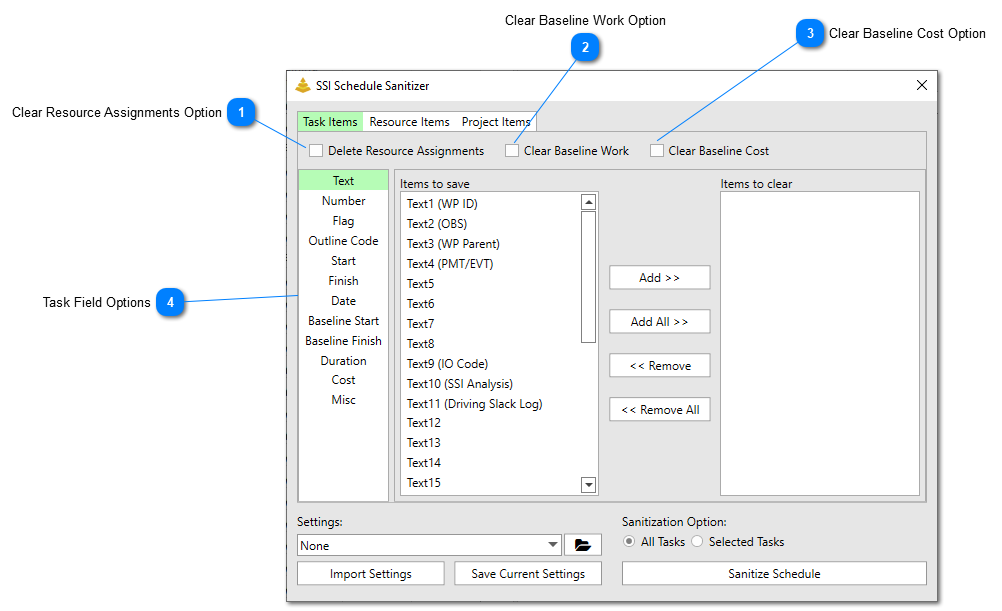
The Task Items Tab allows users to choose which task level data to be removed when the schedule sanitization occurs.
Clear Resource Assignments Option
Check this option to remove resource assignments from the tasks that are sanitized. Choosing to delete the resource assignments will remove any resource assignments from the tasks that are sanitized. Because the resource assignments are removed, work and cost value of tasks will be set to zero. Baseline work and cost values are preserved unless the options to remove baseline work and/or baseline cost are specifically checked.
Check this option to clear the baseline work from the tasks that are sanitized. Choosing the option to delete baseline work will set the value of baseline work to zero on the tasks that are sanitized. This includes removing the time-phased baseline work values.
Check this option to clear the baseline cost from the tasks that are sanitized.Choosing the option to delete baseline cost will set the value of baseline cost to zero on the tasks that are sanitized. This includes removing the time-phased baseline cost values.
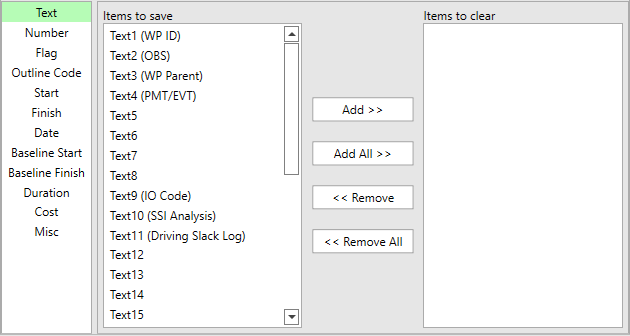
Use the controls to select which task fields will be cleared and which will be saved. Note that if the Sanitization Option is set to All Tasks, the custom names and formulas of the fields chosen to be cleared will be removed.
The list box control on the left side is the Task Fields to Save list. The list on the right side is the Task Fields to Clear list. Items can be moved back and forth between the two lists by using the Add and Remove buttons. When the schedule sanitization occurs, data in the Task Fields to Clearlist will be removed, while data in the Task Fields to Savelistwill be preserved.
Clicking the Add >> button will move any items you have selected in the Task Fields to Save list to the Task Fields to Clear list.
Clicking the Add All >> button will move all of the items in the Task Fields to Save list to the Task Fields to Clear list, regardless if they are selected or not.
Clicking the << Remove button will move any items you have selected in the Task Fields to Clear list to the Task Fields to Save list.
Clicking the << Remove All button will move all of the items in the Task Fields to Clear list to the Task Fields to Save list, regardless if they are selected or not.