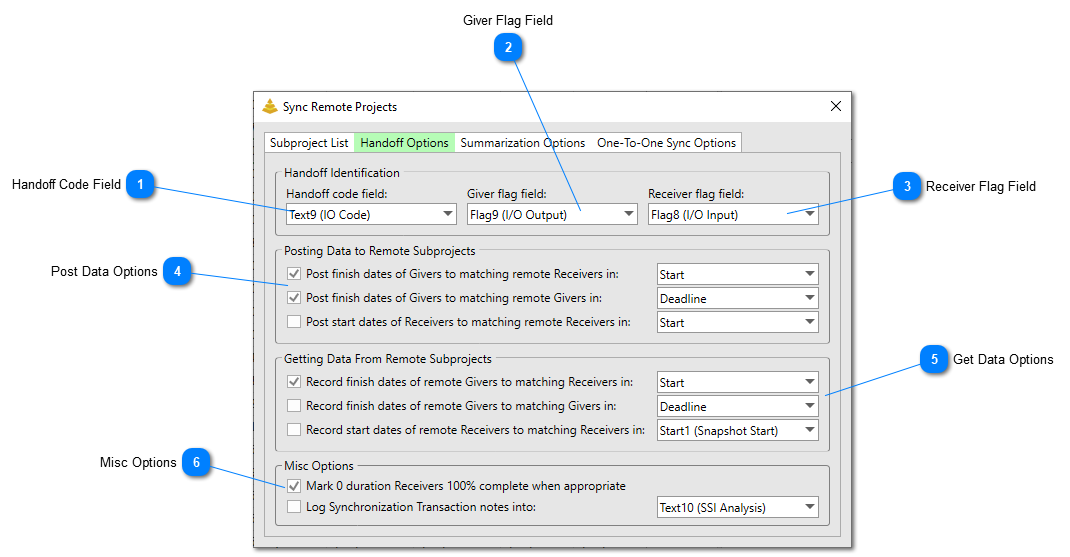
Set this option to the flag field that Subproject files use to mark Givers. Anything set to “Yes” that also contains a Handoff Code will be identified as a Giver by this tool.
Set this option to the flag field that Subproject files use to mark Receivers. Anything set to “Yes” that also contains a Handoff Code will be identified as a Receiver by this tool.
these options will set how this tool will post Handoff dates to Subproject files when the Post Data to Subprojects button is clicked on the Subproject List tab. The following options are available:
• Post finish dates of Givers to matching remote Receivers - checking this option will instruct this tool to post the finish date of Givers found in the current project to any matching Receivers it finds in Subproject files. These dates will be posted to the remote Receivers in the field selected.
• Post finish dates of Givers to matching remote Givers - checking this option will instruct this tool to post the finish date of Givers found in the current project to any matching Givers it finds in Subproject files. These dates will be posted to the remote Givers in the field selected.
• Post the start dates of Receivers to matching Remote Receivers - checking this option will instruct this tool to post the start date of Receivers found in the current project to any matching Receivers it finds in Subproject files. These dates will be posted to the remote Receivers in the field selected.
These options will set how this tool will get Handoff dates from Subproject files when the Get Data from Subprojects button is clicked on the Subproject List tab.
• Record finish dates of remote Receivers to matching Receivers - checking this option will instruct this tool to post the latest finish date of Givers found in the Subproject files to any matching Receivers it finds in active project file. These dates will be posted to the active project's Receivers in the field selected.
• Record finish dates of remote Givers to matching Givers - checking this option will instruct this tool to post the latest finish date of Givers found in the Subproject files to any matching Givers it finds in active project files. These dates will be posted to the active project's Givers in the field selected.
• Record the start dates of remote Receivers to matching Receivers - checking this option will instruct this tool to post the earliest start date of Receivers found in the Subproject files to any matching Receivers it finds in the active project file. These dates will be posted to the active project's Receivers in the field selected.
The following options are available in this group:
Mark 0 duration Receivers 100% complete when appropriate – Checking this option will tell the tool to automatically mark Receivers 100% complete if the following conditions are met:
• The Receiver is a milestone (0-day duration).
• All Givers with a matching Handoff code are 100% complete.
• The date the receiver lands on after the Giver(s) date is posted is prior to the project status date.
Log Link Notes – Checking this option will cause this tool to log notes on Handoffs in a text field indicating whether the Handoff was able to be synchronized. Keep in mind, this tool automatically creates a synchronization log in the background during runtime that can be exported to Excel, so it is not necessary to check this option.