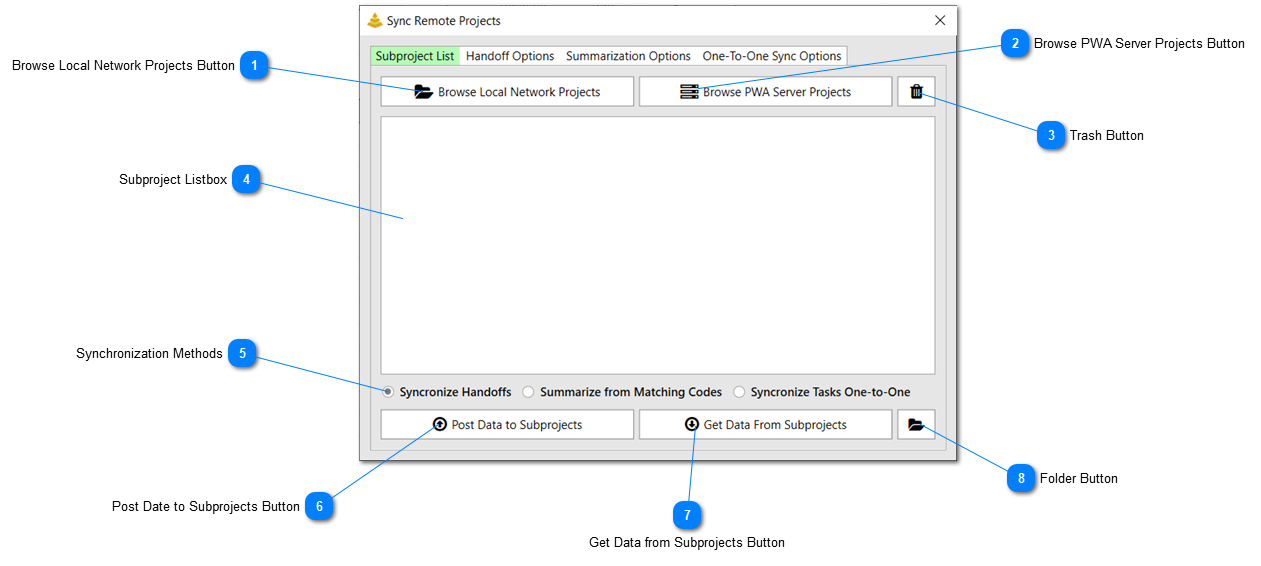
The Subproject List tab is the first tab on the Sync Remote Projects form and allows users to browse to Subproject files (or the Master Project file) and either
Get
data from those files or Post data to those files.
Browse Local Network Projects Button
Click this button to browse for Project files that exist on your local network. Select the files you would like to either post data to or get data from.
Click this button to browse for Project files that exist on your Project Web App (PWA) server. Select the files you would like to either post data to or get data from. Note - this option will only appear if you are using a Microsoft Project Professional Profile that is connected to Project Server or Project Online.
This control will list all the file paths of the project files browsed for and selected with the Browse Local Network Projects Button or the Browse PWA Server Projects Button. The project files in this list will be the files that data will either be posted out to or gotten from. A selected file can be removed from the list by pressing the delete key on the keyboard.
There are three different methods to either posting or getting data:
• Synchronize Handoffs – selecting this method will cause the tool to only sync Handoff (Givers/Receivers) dates across Subprojects. This means that only the options selected on the Handoff Options tab will be followed when either posting or getting data.
• Summarize from Matching Codes – selected this method will cause the tool to only summarize (find the minimum and maximum) dates from tasks with matching codes. When posting data, the tool will summarize dates of tasks with matching code values within the active project and then post those dates to Subproject files that have matching codes. When getting data, the tool will summarize dates of tasks with matching code values across all Subproject files selected and then post those dates to tasks in the active project file that have matching code values. The options for this synchronization method can be set on the Summarization Options tab.
• Synchronize One-to-One – Selecting this method will cause the tool to only perform a one-to-one synchronization based on the options selected in the One-to-One Sync Options tab. One-to-One synchronization means that there will be an exact one-to-one match between tasks in the active file and any subproject files selected based on the unique identifier field chosen. Values on these tasks will by synced by either a post or a get.