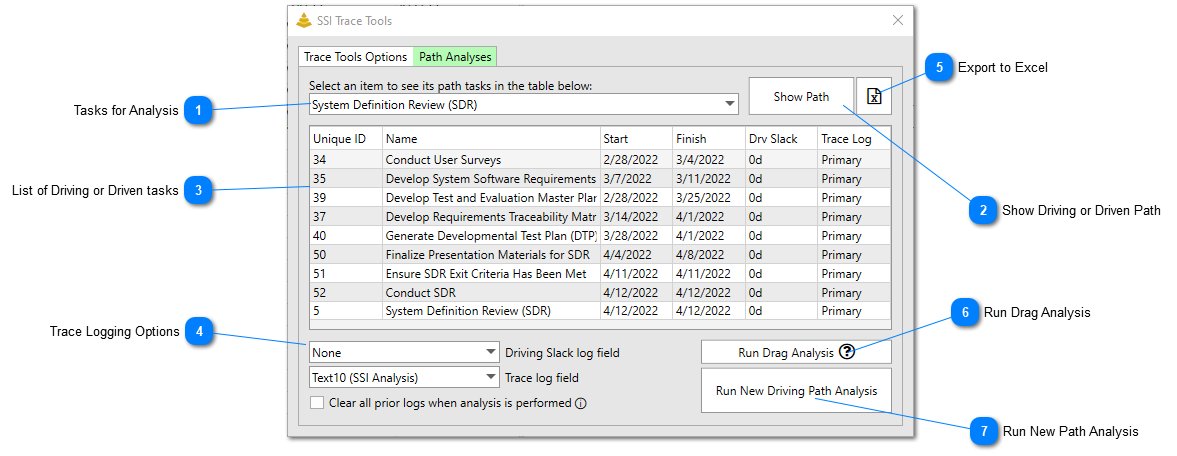
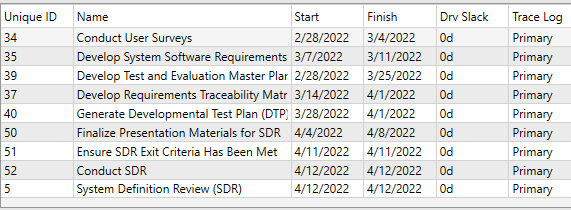
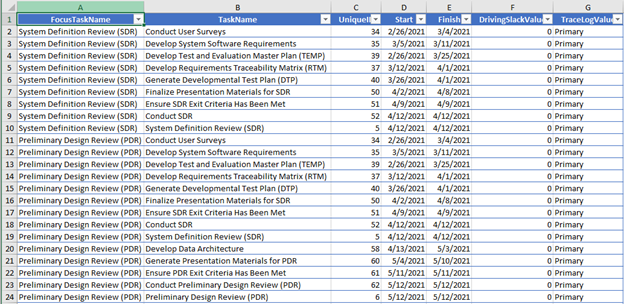
When you select one or more items for a trace analysis, the driving or driven path for each selected item is displayed in a table on the Multi-Path tab. The maximum amount of tasks that can be selected to run a trace analysis on at a single time is 10.
Drop-down
The top drop-down control shows the names of each selected item in the path analysis. These are known as the "focus" items of the analysis. Select each item in turn to display its driving predecessors or driven successors in the table below.
This button will display the results of the Driving/Driven Path analysis of the selected focus item in the top drop-down box in the Gantt Table and Gantt Char.
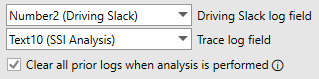
Driving Slack Log Field is the number or text field designated by the user that SSI Tools will code driving slack values to. This field is optional and can be set to “None”. If None is selected, driving slack values for each task will still be shown in the table in the Multi-Path tab but will not be coded in a Number or Text field on the tasks when the results are shown.
Trace Log Field is used to mark the tasks determined to be on the driving/driven path. This field is required and must be a text or flag field. Values will be coded in these fields on the path tasks when the user clicks the Show Path button on the Multi-Path tab.
Clear all prior logs when analysis is performed will ensure that SSI Trace Tools removed any values in the chosen Driving Slack Log Field and Trace Log Field prior to the new trace analysis being performed.
This button functions the exact same as the Run Path Analysis button on the Trace Options tab. Clicking it will start a new trace analysis to whatever tasks are currently selected in the Gantt table of Microsoft Project.