Secondary and Tertiary Path Options
Get the Next Closest Path
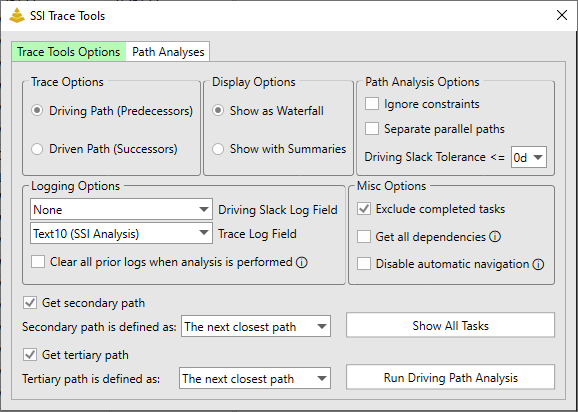
Choosing the option to get the next closest path will cause SSI Trace Tools to get whatever the next closest path is from the parent paths. The next closest path will always be the path with the lowest amount of Driving Slack relative to the parent path. In the following example, we will be running a primary, secondary, and tertiary driving path analysis to Preliminary Design Review (PDR). We will define our secondary and tertiary paths as the next closest paths:
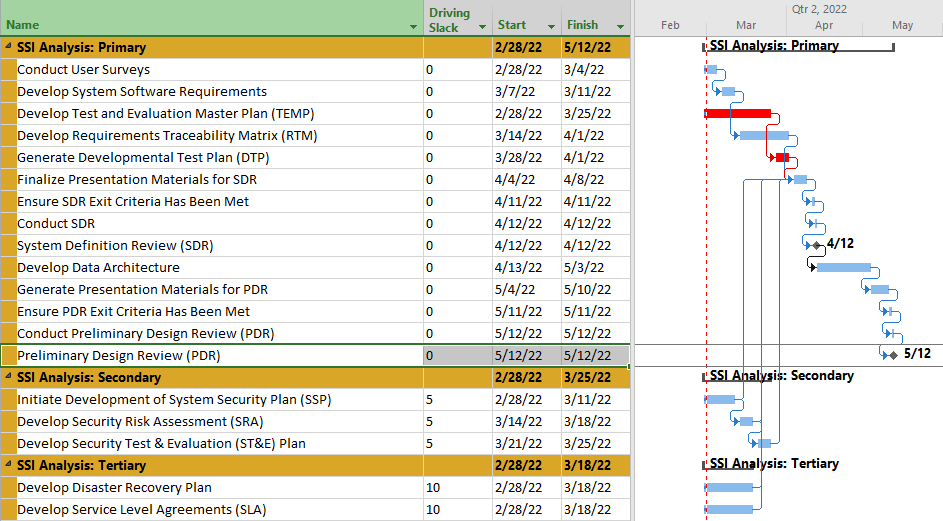
Output:
From the images shown above, you can see that all items in the secondary path have 5 days of Driving Slack, where all items in the tertiary path have 10 days of Driving Slack. Using this analysis, we can see that the next closest task to the primary path to Preliminary Design Review (PDR) and its subsequent driving predecessors have 5 days schedule flexibility (can be delayed by up to 5 days) before they would start to delay Preliminary Design Review (PDR) from its current finish date. Tasks on the tertiary path have 10 days of schedule flexibility before they would start to delay Preliminary Design Review (PDR), which is the next closest set of tasks after the tasks on the secondary path.
Using a Driving Slack Range to Define Near Paths
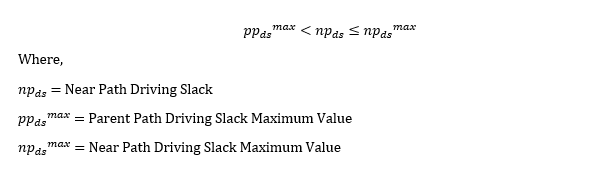
Choose the slack plus option will allow the user to define a driving slack range, in calendar days, that will determine near driving/driven path tasks. This driving slack range is relative to the tasks on the parent paths. Thinking about this mathematically, you can use this formula:
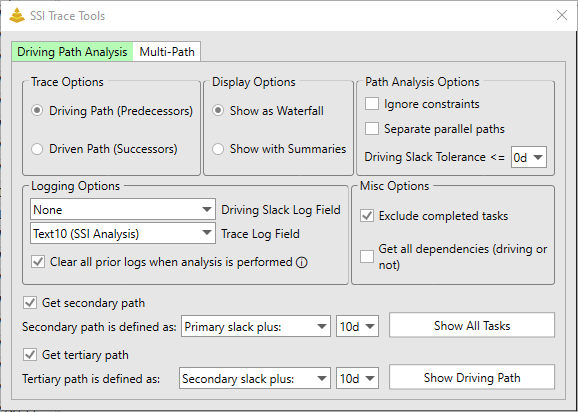
In our example, we will once again run the analysis to Preliminary Design Review (PDR), but we will define the secondary path as Primary Slack Plus 10 days and the tertiary path as Secondary Slack Plus 10 days:
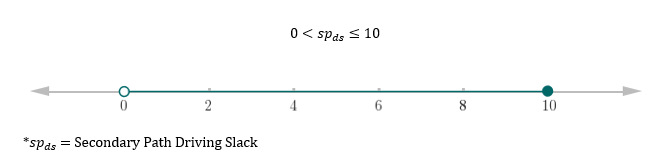
In the case of the secondary path, we are setting the maximum Driving Slack value to be 10 days greater than the maximum Driving Slack value of the parent path (for the secondary path, the parent path is the primary path). Our primary path's maximum Driving Slack value is 0 days (set by the Driving Slack Tolerance selection). Therefore, the maximum Driving Slack value for our secondary path is 10 days (0 + 10 = 10). Let's plug these values into our formula and plot what will constitute valid secondary path Driving Slack values on a number line:
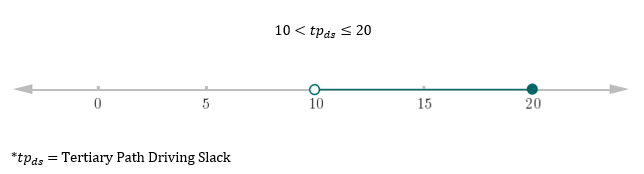
In the case of the tertiary path, we are setting the maximum driving slack value to be 10 days greater than the maximum driving slack value of the parent path (for the tertiary path, the parent path is the secondary path). Our secondary path's maximum driving slack value is 10 days (as defined by us in this example). Therefore, the maximum Driving Slack value for our tertiary path is 20 days (10 + 10 = 20). Let's plug these values into our formula and plot what will constitute valid tertiary path Driving Slack values on a number line:
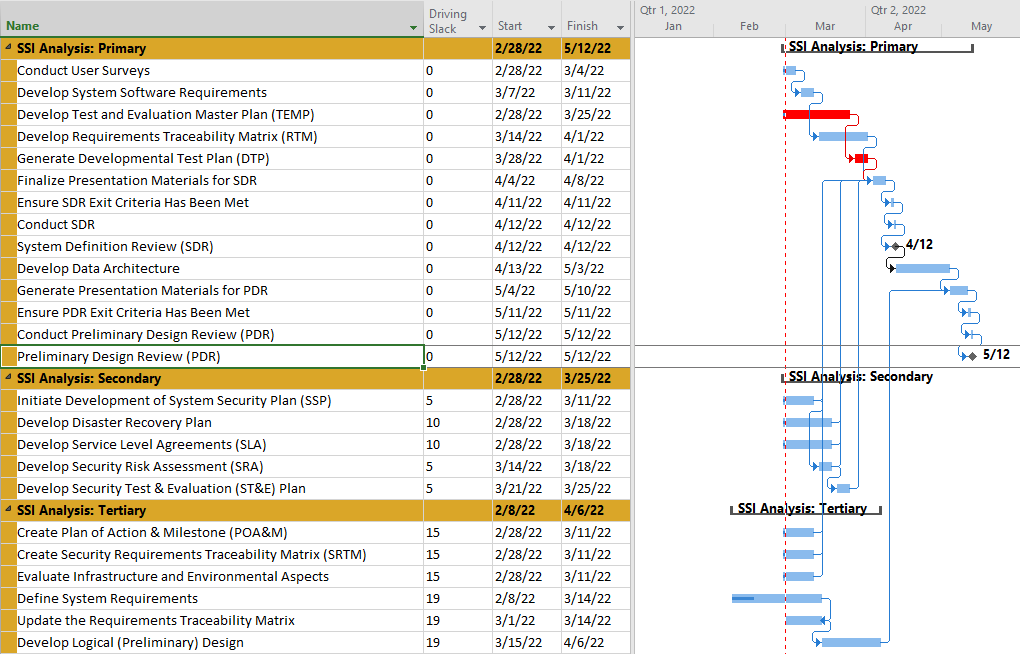
Output in Microsoft Project:
From the images shown above, you can see that the secondary path is now composed of tasks that have 5 and 10 days of driving slack to Preliminary Design Review (PDR) while the tertiary path has tasks that have 15 and 19 days. These values fall within the range that we defined and therefore are considered to be part of the secondary or tertiary path.