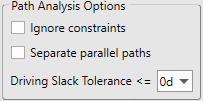
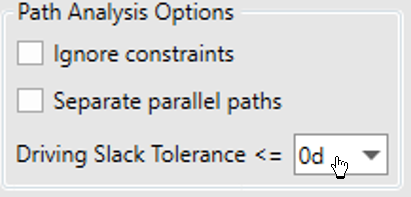
Ignore Constraints will cause the analysis to be calculated as if all tasks have an As Soon As Possible constraint type applied to them. This means that the analysis will continue to run even if tasks found are driven by a constraint date rather than its dependencies. Checking this option does not remove constraints from tasks when the analysis is performed.
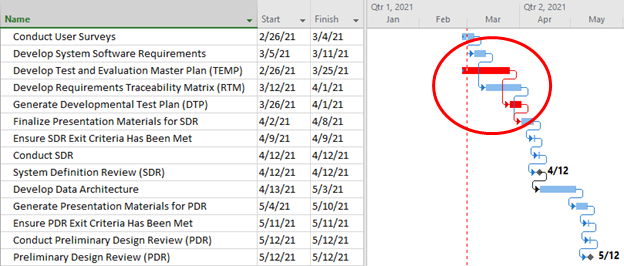
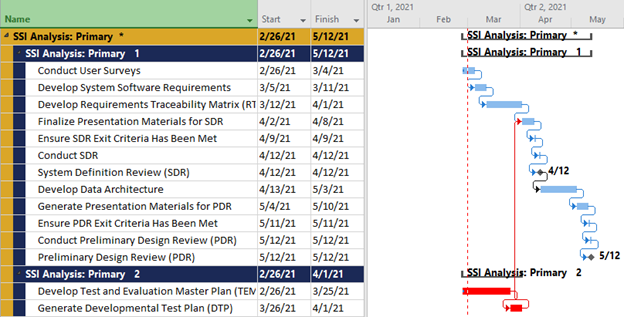
Separate Parallel Paths will cause SSI Tools to separate any parallel paths that exist in a given analysis. A parallel path is a path of tasks that run concurrently to another path, but do not have any interdependencies between each other until a certain point. When running a Driving Path, all of the tasks on a parallel path are still considered to be driving the focus item because they cannot be delayed without impacting the focus item. When running a Driven Path, parallel path tasks are still considered to be driven items because they would be impacted if the focus item were to be delayed.
Without Separating Parallel Paths, concurrently scheduled tasks are shown together according to their finish dates
When you select the option to Separate Parallel Paths, SSI Tools creates distinct groups of concurrently scheduled tasks
Driving Slack Tolerance
The amount of schedule flexibility allocated to determine tasks that are considered driving to or driven by the “focus item” of the analysis (the item chosen by the user for analysis). SSI Tools only inspects dependencies if they are related to the focus item when calculating Driving Slack. Driving Slack may be different than Microsoft Project's value for Critical, Free Slack and Total Slack since Microsoft Project may include dependencies that do not link to the user's focus item. The drop-down list allows the user to include tasks that are close to the Driving path. For example, if 5 Days of driving slack is selected, the outputted result will include any tasks that have between zero to five days of driving slack to the focus item of the analysis. The default and recommended value for this option is 0d. This will ensure only tasks with no flexibility to move will be considered driving or driven tasks.
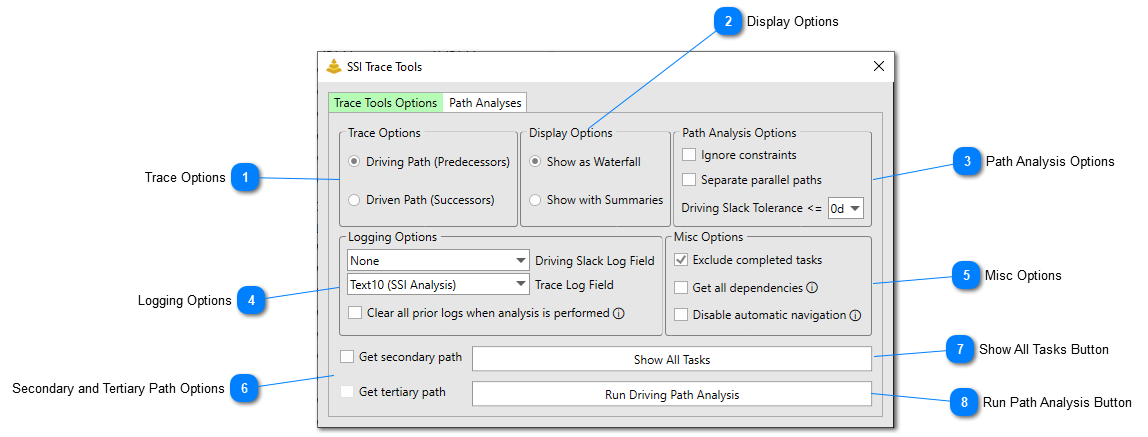
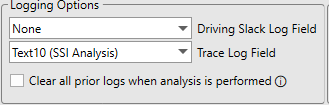
Driving Slack Log Field is the number or text field designated by the user that SSI Tools will code driving slack values to. This field is optional and can be set to “None”. However, we highly recommend assigning a field to the driving slack log.
Trace Log Field is used to mark the tasks determined to be on the driving/driven path. This field is required to run the analysis. Text or flag fields can be used for this log, however, a text field must be used if you wish to Separate Parallel Paths or get a Secondary or Tertiary path.
Clear all prior logs when analysis is performed will ensure that SSI Trace Tools removed any values in the chosen Driving Slack Log Field and Trace Log Field prior to the new trace analysis being performed.
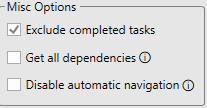
Exclude Completed Tasks will cause SSI Tools to ignore 100% complete tasks when running the driving/driven path analysis.
Get All Dependencies will cause SSI Tools to get all dependencies leading up to (or succeeded by in the case of a driven path) the path focus item, regardless if they are driving/driven or not.
Disable automatic navigation will prevent the Trace Tools from automatically navigating to the Path Analyses tab after the Run button is clicked, instead the user will remain on the Trace Options tab.
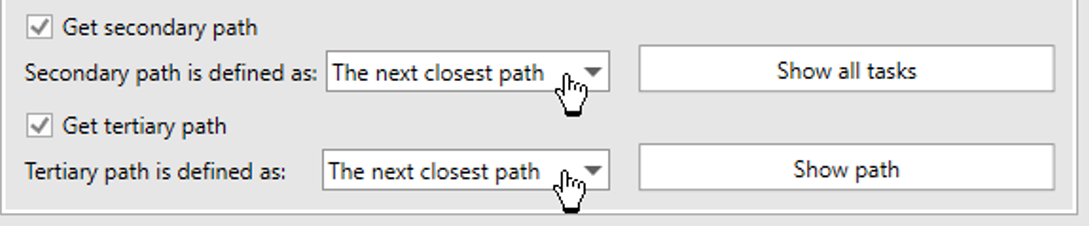
Get Secondary Path will cause the analysis to examine for and mark tasks determined to be secondary to the Primary Driving/Driven Path.
Get Tertiary Path shows will cause the analysis to examine for and mark tasks determined to be tertiary to the Primary Driving/Driven Path. This option can only be checked if the option to get a secondary path is also checked.
There are two options available for how SSI Tools can determine Secondary and Tertiary Path tasks:
The next closest path will cause SSI Trace Tools to get whatever the next closest path is from the parent paths.
Primary/Secondary slack plus will allow the user to define a driving slack range, in calendar days, that will determine near driving/driven path tasks. This driving slack range is relative to the tasks on the parent paths. If no tasks are identified to fall within the range defined by the user, near driving path(s) may not appear in the output of the analysis.
This button clears all filters, expands all subtasks, and returns the project to its original sort order. Optionally it will also clear any applied group. The currently selected task will remain selected after this button is clicked.