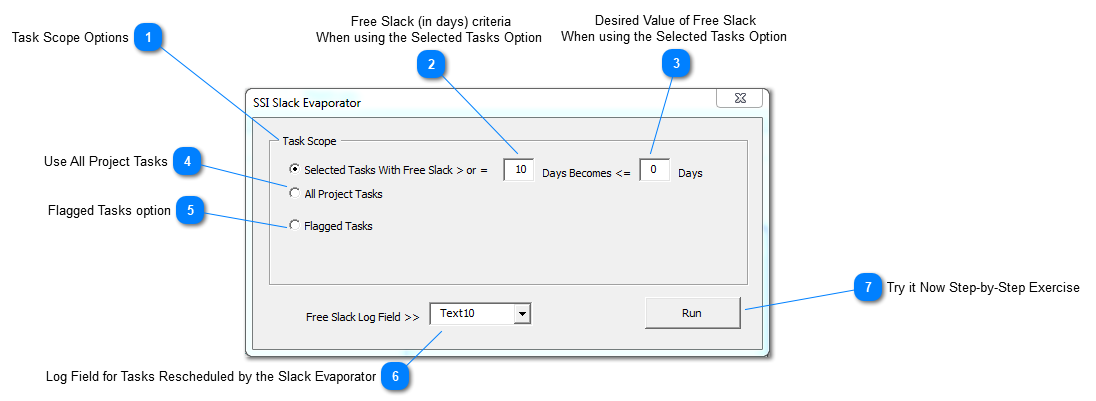
Free Slack (in days) criteria When using the Selected Tasks Option
This option is available when the Selected Tasks option is used. Enter a value for the number of days of free slack. Tasks that have a free slack value greater than or equal to this value will be rescheduled, via a Start No Earlier Than (SNET) date constraint until the desired value is reached.
Desired Value of Free Slack When using the Selected Tasks Option
This option is available when the Selected Tasks option is used. Enter a value for the desired number of days of free slack. Tasks that have a free slack value greater than or equal to both values used for this option will be rescheduled, via a Start No Earlier Than (SNET) date constraint date.
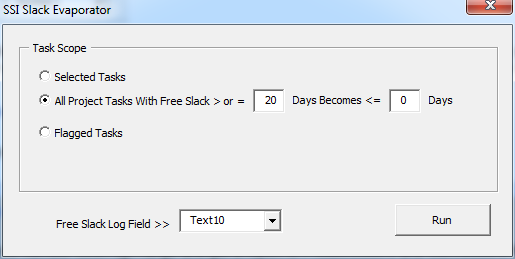
Select this option to evaluate all project tasks for Free Slack evaporation. When this option is selected, the values for Free Slack and Desired Free Slack moves to this option
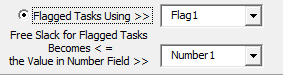
Select this option to evaluate all project tasks for Free Slack evaporation. When this option is selected, you must specify the flag field used to identify tasks to evaluate and you must specify the number of free slack days you desire for the flagged tasks. Since zero is the default value for number fields in Microsoft Project, Zero values are ignored when using this tool. If you desire Free Slack to become zero days, set the value to 1 in the number field.
Use this tool to enter a row number Low/High range and get a report of Predecessors and Successors that are outside (external to) that range
Step
Description / Image View
Step 1.
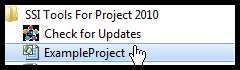
Open Microsoft Project and open the project named ExampleProject.mpp. This file is in the installation folder for SSI Tools and can be found by selecting SSI Tools for Project from the Windows Start menu.
Step 2.
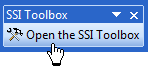
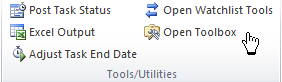
Open the SSI Toolbox and Click the button named Slack Evaporator.
Project 2003 - 2007 Toolbar
Project 2010 - 2013 Ribbon
Step 3.
Select the Task Scope option named All Project Tasks and enter 20 and 0 for the Free Slack and Desired Free Slack values. Select Text10 for the Free Slack Log Field and Click Run.
Display Text10 and find the tasks that were delayed by the Slack Evaporator. A note appears in this field as "Free Slack Delay Added as Start No Earlier Than"