SSI Tools for Microsoft Project

User guide

×
Menu
Index

SSI Schedule Performance Dataset Exporter Tool

 
SSI's Schedule Performance Dataset (SPD) Exporter can convert a Microsoft Project schedule into the 19 JSON files that make up an SPD.
 
SSI Schedule Performance Dataset Exporter Tool
1

SPD Data Option Tabs

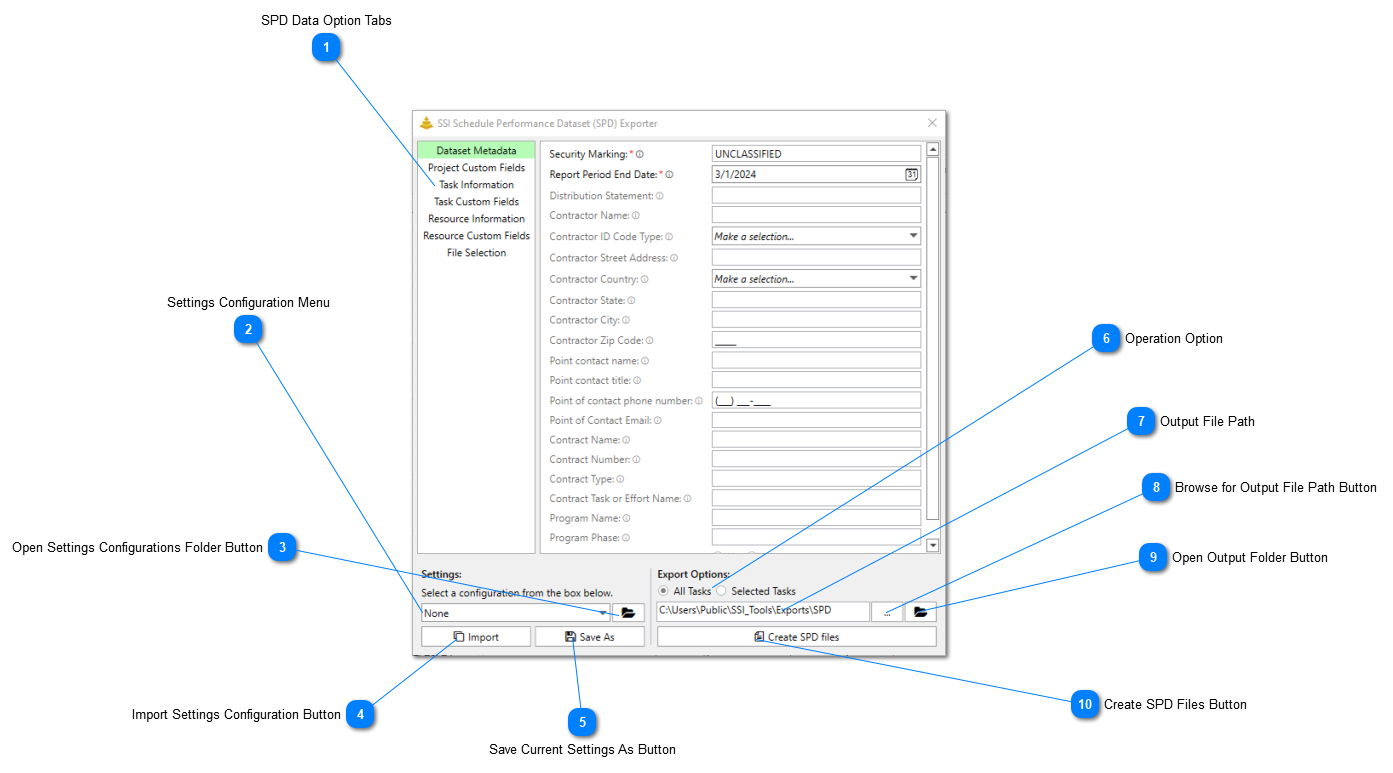
1. SPD Data Option Tabs
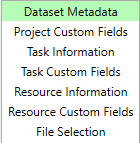
The left side of the SPD Exporter tool features various tabs. Each tab provides access to a distinct set of options relevant to that tab's category:
 
  • Dataset Metadata: Access options for entering and configuring the metadata related to your SPD.
  • Project Custom Fields: Choose any project level custom fields.
  • Task Information: Select options used to generate data about the project's tasks.
  • Task Custom Fields: Choose any task level custom fields.
  • Resource Information: Select options used to generate data about the project's resources.
  • Resource Custom Fields: Choose any resource level custom fields.
  • File Selection: Choose which JSON files are created when SPD is generated.
2

Settings Configuration Menu

2. Settings Configuration Menu
Use this drop-down control to select an SPD Settings Configuration, which will set all options across all SPD Data Option tabs to whatever settings are used in the selected configuration.
3

Open Settings Configurations Folder Button

3. Open Settings Configurations Folder Button
Click this button to open the directory containing the saved SPD Settings Configurations in a Windows File Explorer
4

Import Settings Configuration Button

4. Import Settings Configuration Button
Click this button to browse for and import a SPD Settings Configuration.
5

Save Current Settings As Button

5. Save Current Settings As Button
Click this button to save your currently applied options to a new SPD Settings Configuration file.
6

Operation Option

6. Operation Option
This option will determine what tasks the SPD will be generated from. The following options are available:
 
  • All Tasks: This option will use data from all tasks in the schedule to generate the SPD when the Create SPD Files button is clicked.
  • Selected Tasks: This option will only use data from the the currently selected tasks to generate the SPD when the Create SPD Files button is clicked.
7

Output File Path

7. Output File Path
This textbox will display the directory the SPD files will be outputted into when the Create SPD Files button is clicked. The default directory is [The SSI Tools Installation Directory]\Exports\SPD. This directory can be changed to anywhere in your file system by double clicking on this control.
8

Browse for Output File Path Button

8. Browse for Output File Path Button
Click this button to browse for a directory for the SPD output.
9

Open Output Folder Button

9. Open Output Folder Button
Click this button to open the SPD Output directory in a Windows File Explorer.
10

Create SPD Files Button

10. Create SPD Files Button
Click this button to begin generating the SPD JSON files for your project. Once the SPD files are finished, the Output Directory containing the generated files will automatically open. These files should be combined into a single zip file afterwards for validation or submission.

 
Made by Dr.Explain, software documentation tool