If you have chosen to step through changes, the Single Change Page will be displayed. This page offers a more meticulous way to accept changes can be used to analyze the impacts of a change prior to accepting it.
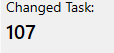
This section displays the Tracking Unique ID of the item that was changed. Note that any added tasks will not initially show a normal Tracking Unique ID value, instead they will show a GUID until they are accepted. This is necessary to be able to import added tasks properly.
This section displays a written description of the change that occurred, for example, "CHANGED duration to 20 days" communicates that the duration value of the task was changed from to 20.
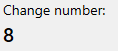
This section displays the sequence in which the change was recorded, with 1 representing the first recorded change, 2 representing the second, and so on.
This section will display any changes that must be accepted before the current change can be accepted. This section will not be visible for changes that have no contingencies or that had contingencies that have been accepted already.
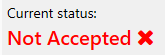
This displays the current status of the change. If the change has not been accepted yet, the status will display "Not Accepted". Once a changes has been accepted and replicated successfully, the status value will change to "Accepted".
Click this button to attempt to accept the current change. If the change cannot be replicated, the status of the change will remain "Not Accepted". This button cannot be pressed if the current change contingencies that have not yet be accepted.
The bottom of the Single Change Page will display the number of the change you are currently on.
The blue progress bar indicates your current position within the sequence of recorded changes. To navigate directly to a specific change, enter its Change Number in the text box below the bar.