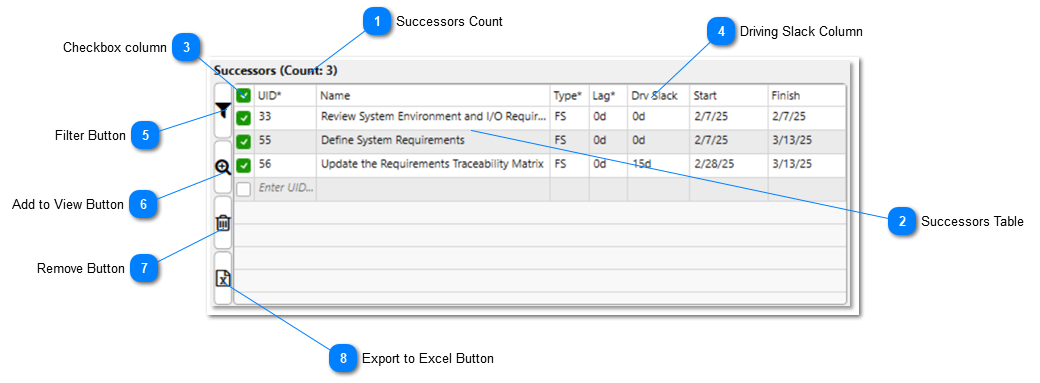
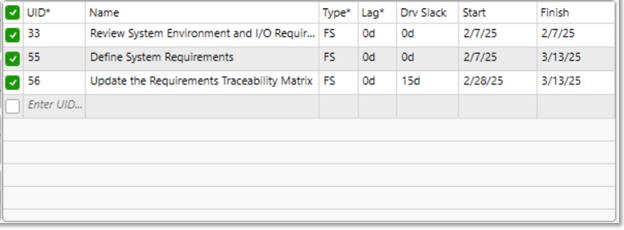
Each row in this table represents a successor activity linked to the currently selected activity. The columns provide two types of information: attributes of the successor task itself, such as UID and Name, and details about the dependency relationship between the successor and the selected task, such as Type, Lag, and Driving Slack. You can quickly navigate the schedule to any of the successor activities displayed by double clicking on any cell in its row in the table.
Columns with an asterisk (*) at the end of the header indicate that the field is editable within the Predecessor Table. The following fields are editable in the Successors Table: Unique ID, ID, Type, and Lag.
The fields visible in this table can be adjusted to your liking through the Dependency Tracer Configuration
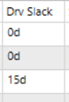
This column displays how much Driving Slack the currently selected task has to each of its successors. These values are calculated in real time by the Dependency Tracer and are not pulled from any existing field in Microsoft Project. Additionally, the Dependency Tracer does not write these values in any task field within the project file.
Successor activities in the Successor Table are always sorted by the amount of Driving Slack the currently selected activity has to them, with those that it has the least Driving Slack to appearing at the top, and those that it has the most to at the bottom
If Driving Slack is ever calculated as a negative number, it indicates an Out-of-Sequence dependency relationship between the the currently selected activity and the successor activity.
Clicking this button will filter the Gantt Chart for the currently selected task and any checked successors in the Successors Table. This button clears any other existing filters.
Clicking this button will add the checked successors in the Successors Table into the current filter in the Gantt Chart if they are not already included. Unlike the filter button, this button does not remove any existing filters, instead it adds additional content into them.
Clicking this button will remove the checked successors from the Successors Table view. This action only removes them from the interface itself. The actual successor relationships are not deleted from the currently selected task in Microsoft Project until the Accept button is clicked
Clicking this button will Export the checked successors from the Successors Table to an Excel spreadsheet. The export will automatically open in Excel once it is completed