The SSI Watchlist Tool enables Microsoft Project users to keep track of the current finish dates of important items (as determined by the user) in comparison to a saved date field. The SSI Watchlist gives users real time feedback if changes they are making in the project file are impacting any of the watched items.
Watchlist Tabs
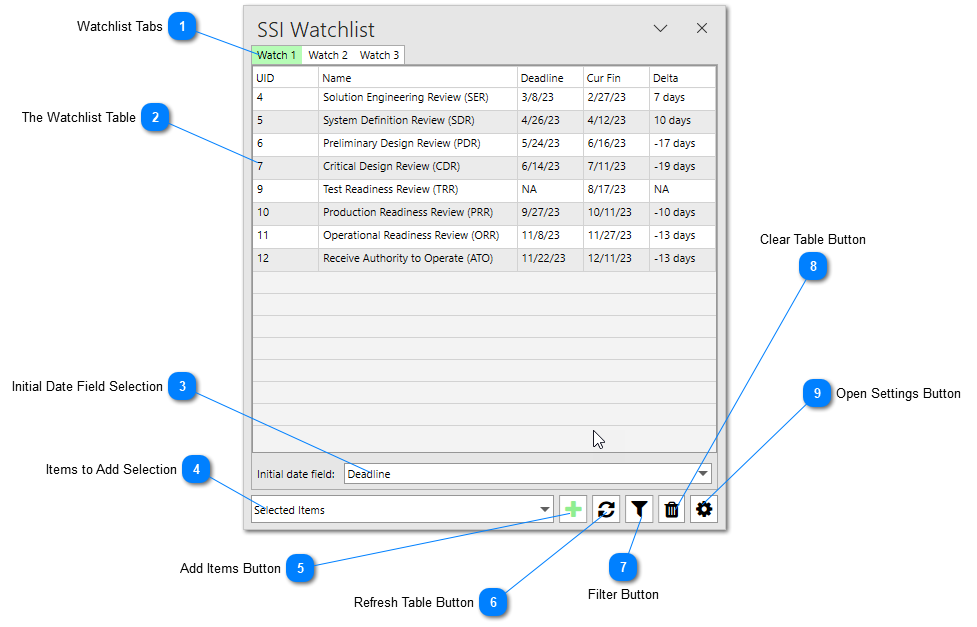
The Watchlist Tabs allow users to toggle the display of one of three Watchlists. Each Watchlist tab can watch different items.
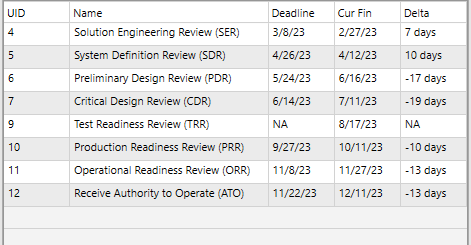
The Watchlist Table displays data about the items being watched by the Watchlist. The following data is displayed:
• UID – The unique ID of the task
• Name – The name of the task
• Initial Date Field – This column will show the value of the initial date that was watched when the task was added into the watch list. The date field shown in the column title will be determined by the initial date field option selected by the user. In the image above, the field is set to Deadline.
• Current Finish – This column will show the current finish date of the task. Unlike the Initial Date Field Column, the date value in this column will update in real time whenever a change is made to the project.
• Delta – This column will show the delta (in days) between the Initial Date Field value and the Current Finish value. A negative number means the current finish date is later than the initial date. A positive number means the current finish date is earlier than the initial date.
The selection in the drop-down box controls the initial date values that will be saved when items are added to the Watchlist. Once an item has been added to the Watchlist, the initial date value will remain static unless the initial date field option is changed.
This option controls what items will be added to the current Watchlist when the Add Items button is clicked. For example, if "Selected Items" is chosen from the menu when the Add Items button is clicked, only the tasks currently selected in the Gantt table will be added to the Watchlist. If "Zero Duration Items" is selected, only the items in the schedule with a duration equal to zero will be added into the Watchlist.