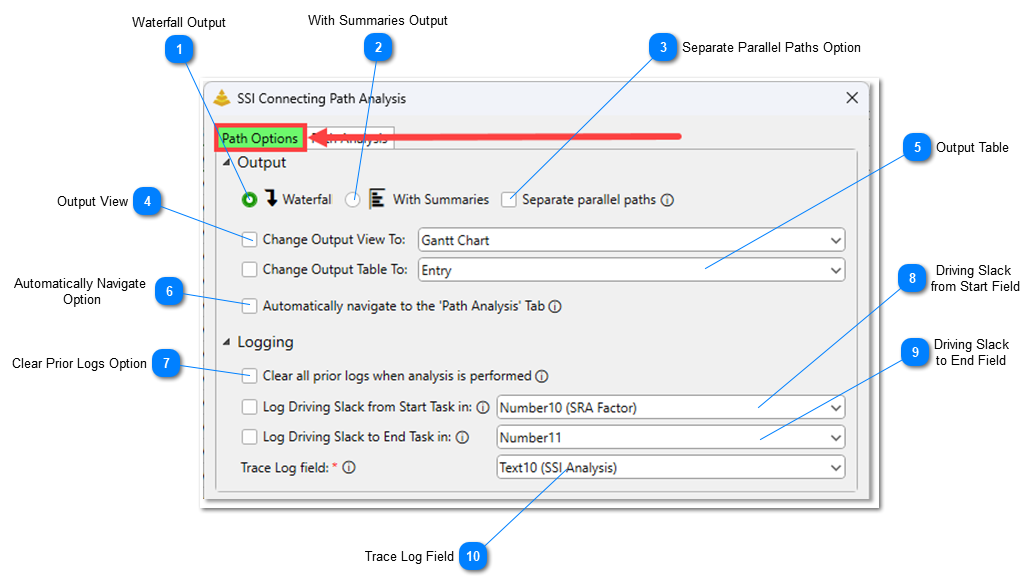
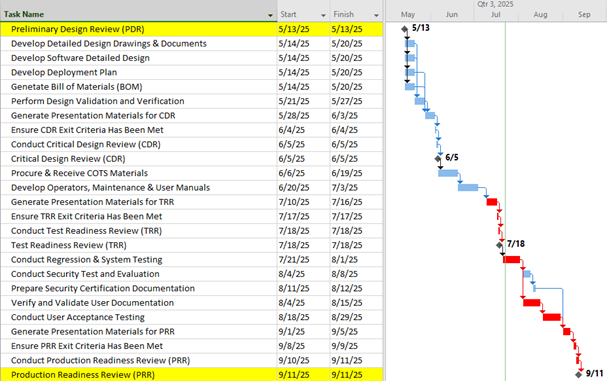
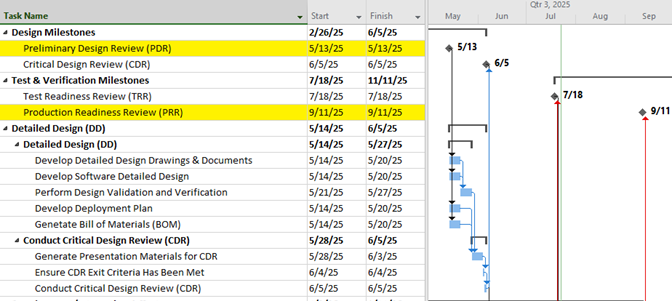
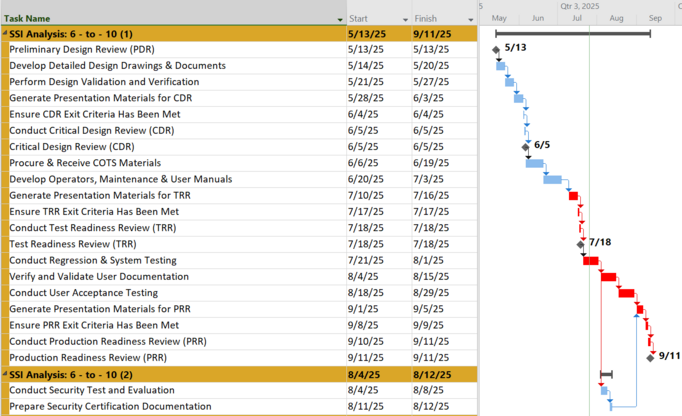
If this option is selected, activities in a Connecting Path will be displayed in a Waterfall style. Specifically, activities in the path will be sorted by their Finish dates, then Start dates, then ID or Row Numbers.
This option will instruct the tool to visually separate any parallel paths in a Connecting Path in the Gantt Chart. When parallel paths are separated, the first grouping in the path will always be the longest continuous path that connects the starting and ending activities.
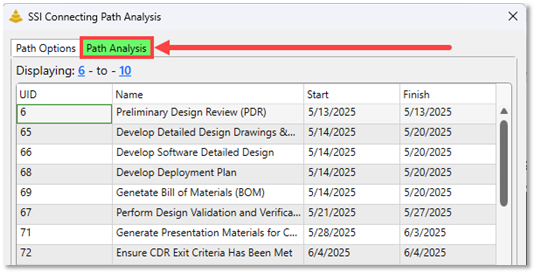
Checking this option will instruct the Connecting Path Tool to automatically switch to the ‘Path Analysis’ Tab anytime a Connecting Path analysis is run. The Path Analysis tab displays a table showing the analysis results and provides additional options for Connecting Paths after they have been calculated.
This option does not change how Connecting Paths are calculated by the tool or how they appear in the Gantt Chart; it simply offers an additional way to view the results.
If this option is checked, the tool will clear out existing values from the selected Driving Slack and Trace Log fields from all activities in the schedule before the result of the next Connecting Path analysis run is displayed.
This option determines if Driving Slack from the starting point will be calculated on Connecting Path activities and, if so, what Text or Number field those values will be written into.
This option determines if Driving Slack to the ending point will be calculated on Connecting Path activities and, if so, what Text or Number field those values will be written into.
This option specifies the custom Text field where Trace Log values will be written. Trace Log values are descriptive notes generated by the Connecting Path Tool for activities on the Connecting Path.