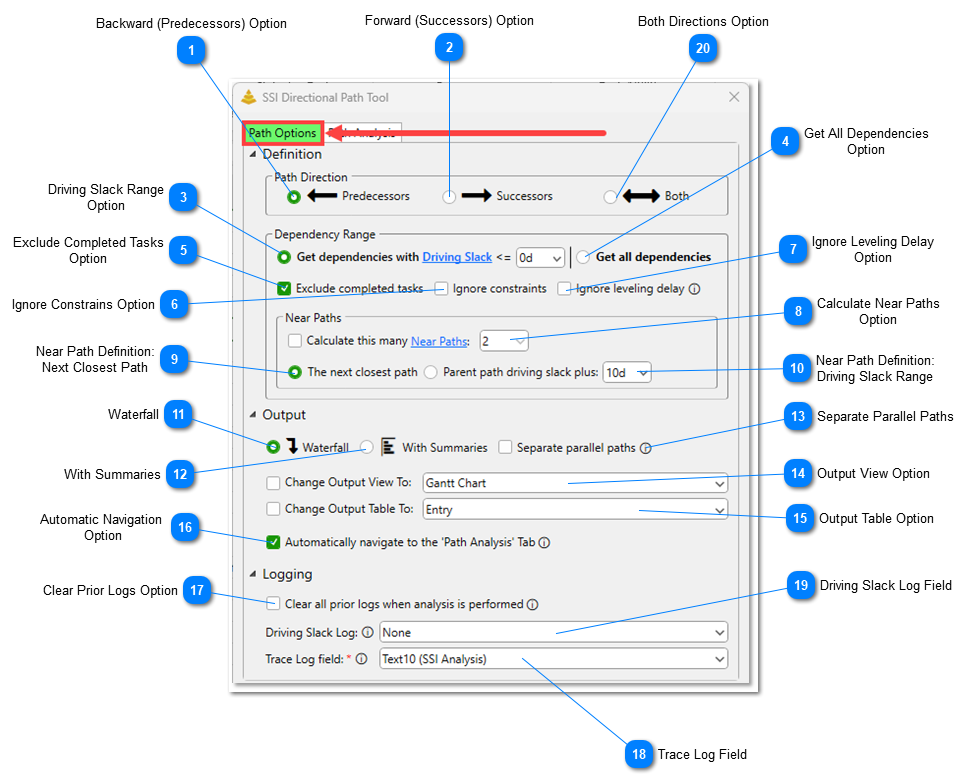
This option defines the Primary Directional Path to only include dependencies that are within the selected Driving Slack threshold in the Directional Path. The maximum value the threshold can be set to 99 days.
It’s important to understand that the value you specify serves as the upper limit for Driving Slack - not the exact value an activity must have to be included in the path.
For example, when the Driving Slack limit is set to 5 days, activities are selected based on whether the Driving Slack calculated falls within that range, not exactly 5 days:
For a Backward Path, the analysis includes only those activities that have Driving Slack values greater than or equal to 0 and less than 5 days to the focus point.
For a Forward Path, the analysis only includes those activities to which the focus point has between 0 and 5 days of Driving Slack.
This option will instruct the tool include all activities that are logically connected to the focus point in the Directional Path, regardless of how much Driving Slack is calculated
For a Backward Path, the analysis will include every single activity that precedes and is logically connected to the focus point through some chain.
For a Forward Path, the analysis will include every single activity that succeeds and is logically connected to the focus point through some chain.
Checking this option instructs the tool to treat activities with an applied Constraint Date as if they are scheduled As Soon As Possible during the analysis. Normally, if a dependency being analyzed falls outside of the established Driving Slack threshold, the analysis ceases on that dependency chain. If this option is checked, the analysis will continue, as if the constraint does not exist. Checking this option does not remove constraints from activities.
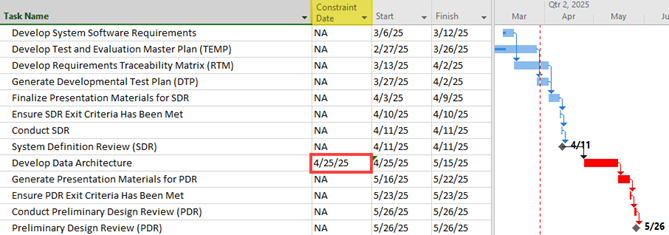
Consider the following example from a Backward Directional Path Analysis with a Driving Slack threshold of 0, where the milestone Preliminary Design Review (PDR) is the focus point:
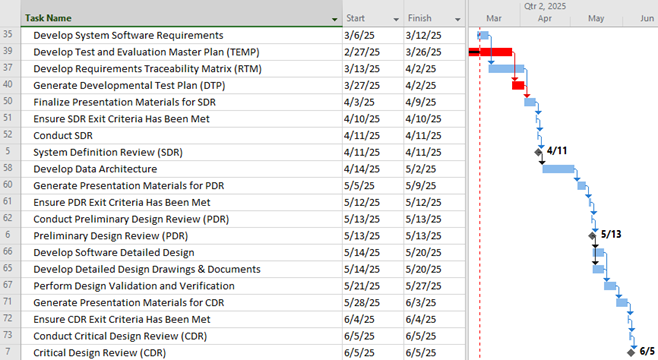
The activity Develop Data Architecture is being driven by its constraint date of 4/25/2025, not any of its predecessors. With the Ignore Constraints option turned off, the analysis would stop at that point. With the Ignore Constraints option turned on, the analysis continues through the dependency chain as if the constraint was not there, resulting in a larger set of activities being included in the path.
If the Dependency Range is set to Get all dependencies, this option will be unavailable.
Checking this option instructs the tool to treat activities with an applied Leveling Delay as if they are scheduled As Soon As Possible with no delay. During the analysis. By default, if the Driving Slack value calculated for a dependency with a Leveling delay is outside of the established Driving Slack threshold, the analysis ceases on that dependency chain. If this option is checked, the analysis will continue, as if the Leveling Delay does not exist. Checking this option does not remove Leveling Delays from activities.
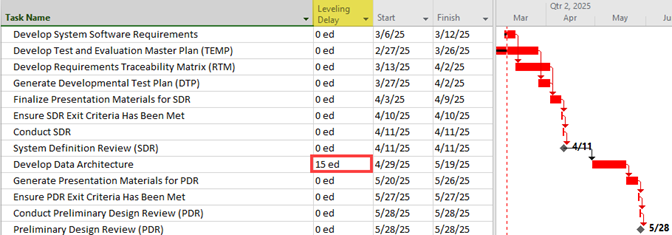
Consider the following example from a Backward Directional Path Analysis with a Driving Slack threshold of 0, where the milestone Preliminary Design Review (PDR) is the focus point:
The activity Develop Data Architecture is being driven by its 15 elapsed day Leveling Delay, not any of its predecessors. With the Ignore Leveling Delay option turned off, the analysis would stop at that point. With the Ignore Leveling Delay option turned on, the analysis continues through the dependency chain as if the Leveling Delay was not there, resulting in a larger set of activities being included in the path.
If the Dependency Range is set to Get all dependencies, this option will be unavailable.
Checking this option will instruct the tool to calculate Near Paths in its analysis. Use the drop-down menu to specify how many Near Paths to calculate. A maximum of 9 Near Paths can be calculated.
If the Dependency Range is set to Get all dependencies, this option will be unavailable.
This option tells the tool to define each Near Path—starting with the first—as the next closest group of activities just beyond the Driving Slack threshold set for the Primary Directional Path. The tool automatically identifies these tasks, so you don’t need to specify how far they are from the threshold.
This option allows you to define Near Paths using a fixed Driving Slack range added to the threshold of the parent path. Rather than identifying the next closest path automatically, this method lets you explicitly set how far beyond the current path's Driving Slack limit each Near Path can extend.
Consider an example of a Primary Backwards Path with a Driving Slack limit of zero. In this case, only activities that have zero days of Driving Slack to the focus point will be included in this path.
If the tool is configured to calculate 2 Near Paths, and the Parent path driving slack plus value is set to 10 days:
The first Near Path would include any activities that have a Driving Slack greater 0 but less than or equal to 10 days to the focus point:
The second Near Path would include any activities that have a Driving Slack greater than 10 but less than or equal to 20 days to the focus point:
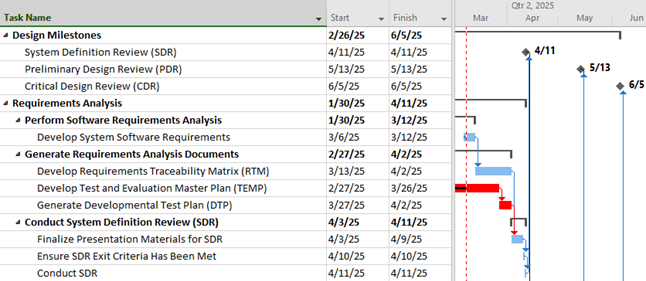
If this option is selected, activities in a Directional Path will be displayed in a Waterfall style. Specifically, activities in the path will be sorted by their Finish dates, then Start dates, then ID or Row Numbers.
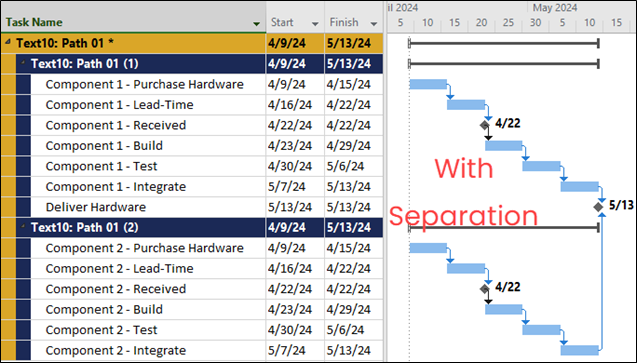
This option will instruct the tool to visually separate any parallel paths in a Directional Path in the Gantt Chart. This option is nothing more than a visual aid.
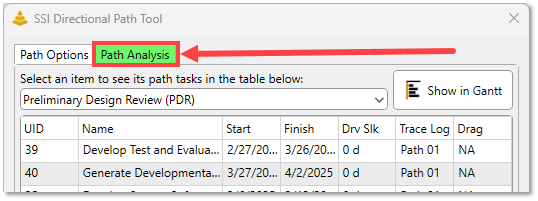
Checking this option will instruct the Directional Path Tool to automatically switch to the ‘Path Analysis’ Tab anytime a Directional Path analysis is run. The Path Analysis tab displays a table showing the analysis results and provides additional options for Directional Paths after they have been calculated.
This option does not change how Directional Paths are calculated by the tool or how they appear in the Gantt Chart; it simply offers an additional way to view the results.
When a Directional Path is calculated for multiple activities at once, the tool will always navigate to the Path Analysis tab automatically, even if the Automatically Navigate to ‘Path Analysis’ Tab option is unchecked.
If this option is checked, the tool will clear out existing values from the selected Driving Slack and Trace Log fields from all activities in the schedule before the result of the next Directional Path analysis run is displayed. Be aware that this option may increase processing time particularly in large project files with many activities.
This option specifies the custom Text field where Trace Log values will be written. Trace Log values are descriptive notes generated by the Directional Path Tool for activities on the Directional Path. This setting is required and must be assigned in order for the tool to display Directional Paths in the Gantt Chart.
This option determines which field the calculated Driving Slack values will be written to. You can choose any custom Text or Number field.
Writing Driving Slack values is optional. If you prefer not to store them, select None from the drop-down list (the first option). However, SSI strongly recommends reserving a field for this purpose, as Driving Slack offers valuable insights into task flexibility and schedule drivers that are not available through standard Microsoft Project fields.
This option instructs the tool to analyze activities that both precede and succeed the focus point. When the Both option is selected and the analysis is run, the output will be displayed in a grouped view in the Gantt Chart to make it easy to understand which set of tasks represent which direction.