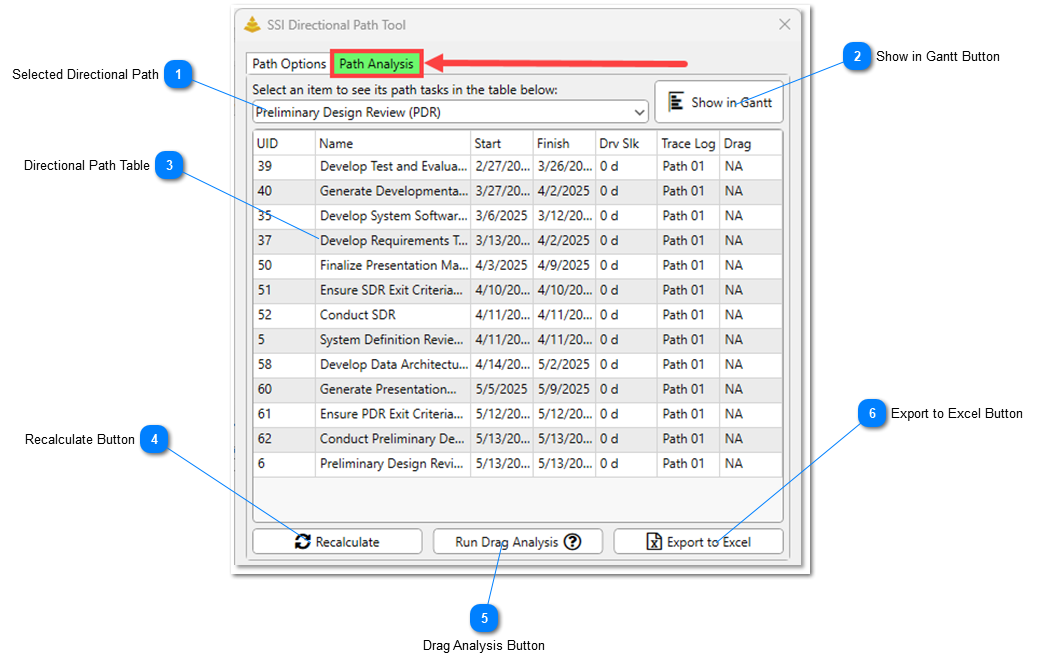
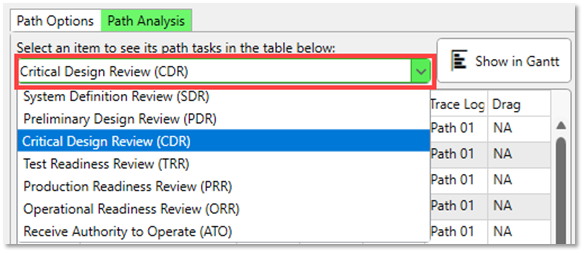
The Directional Path Tool can perform analyses on up to 10 focus points at once. When multiple focus points are analyzed, you can select and view the results for each one using the first drop-down menu on the Path Analysis tab.
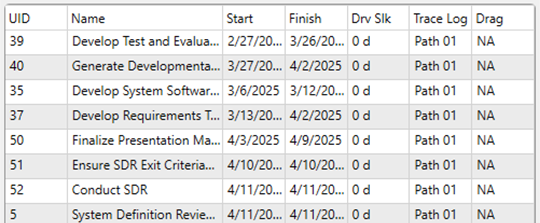
When a focus point is selected from this drop-down list above this control, this table will automatically display the activities that are were calculated as part of that Directional Path at the time the analysis was performed.
This button will prompt the Directional Path Tool to recalculate the currently selected path using the latest settings from the Path Options tab. The focus point of the analysis does not need to be selected in the Gantt Chart for the recalculation to occur. The newly calculated path will automatically be displayed in the Gantt Chart after this action is performed.
This button will perform a drag analysis on the selected Directional Path.
Driving Path Drag is the amount of opportunity (measured in days) a driving activities on a Backward Path could accelerate the focus point if their remaining duration were cut to zero.
When the drag analysis completes, the results will be shown in the table in a column titled “Drag”. Until the analysis is run, values in the Drag column will show “NA”. The analysis only calculates Drag values to the activities that are currently displayed in the Directional Path table.
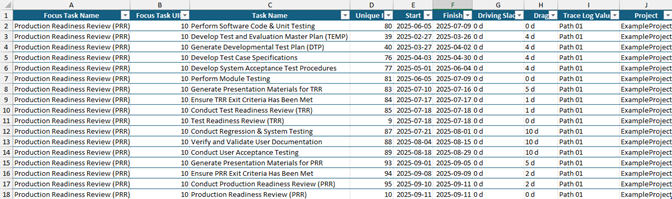
Click this button to export the data in the Directional Path table to an Excel worksheet. This only exports the currently selected Directional Path.
In addition to the data in the columns displayed in the table, the title of the Project each activity on the Directional Path belongs to is displayed in the spreadsheet.
By default, these Excel exports are saved in [SSI_Tools Installation Location]\Exports\Directional Paths. The file name will include the UIDs of the focus point of the Directional Path and the date and time the export occurred.