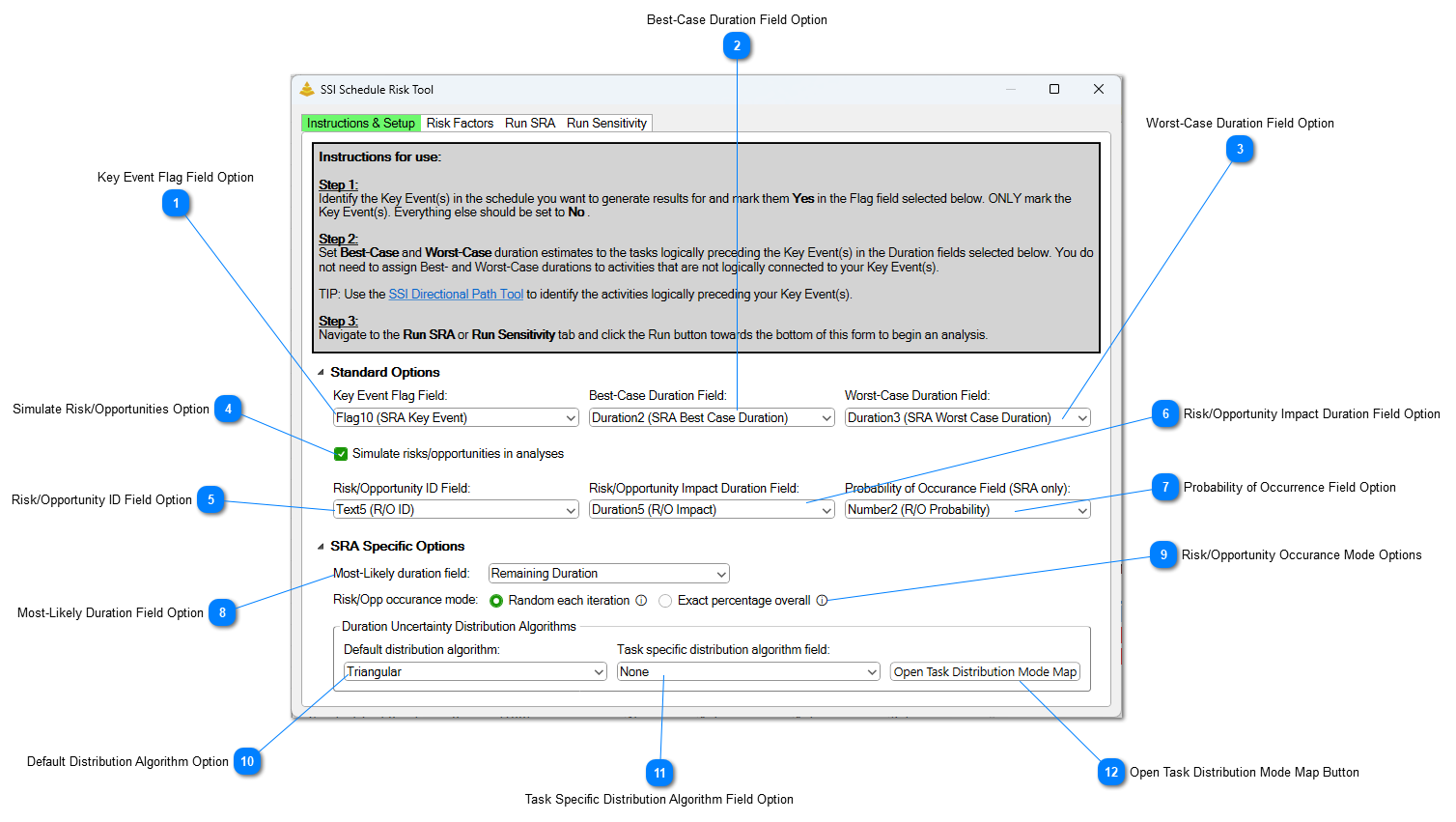
This option specifies which Flag field the Schedule Risk Analysis Tool uses to identify Key Events. Select the desired Flag field from the drop-down menu.
This option specifies which Duration field the Schedule Risk Analysis Tool uses to identify Best-Case duration estimates for tasks. Select the desired Duration field from the drop-down menu.
This option specifies which Duration field the Schedule Risk Analysis Tool uses to identify Worst-Case duration estimates for tasks. Select the desired Duration field from the drop-down menu.
This option controls whether or not the Schedule Risk Analysis tool will include identified Risks and Opportunities in it's analyses. If this option is not checked, the controls immediately below it will not be visible.
This option specifies which field the Schedule Risk Analysis Tool uses to identify Risks and Opportunities. Only items with a value in this field will be included in the analyses as a Risk or Opportunity. Select the desired field from the drop-down menu.
This option specifies which Duration field the Schedule Risk Analysis Tool uses to identify Impact of a Risk or Opportunity being realized. Select the desired Duration field from the drop-down menu.
This option specifies which Number field the Schedule Risk Analysis Tool uses to identify probability of a Risk or Opportunity being occurring. This information is only used in SRAs. Select the desired Duration field from the drop-down menu.
This option specifies which Duration field the Schedule Risk Analysis Tool uses to identify the Most-Likely duration of tasks. Select the desired Duration field from the drop-down menu.
Remaining Duration should always contain what is believed to be a task's most-likely duration.
This option determines how the realization of Risks and Opportunities is modeled during a Schedule Risk Assessment. In Random Occurrence mode, each Risk or Opportunity is evaluated independently during every iteration based on its defined Probability of Occurrence. In Fixed Occurrence mode, the tool ensures that each Risk or Opportunity is realized a specific number of times based on its probability and the total number of iterations. For example, if a Risk has a 10% Probability of Occurrence and the SRA is configured to run 100 iterations, Random Occurrence mode gives the Risk a 10% chance of being realized during each iteration, while Fixed Occurrence mode ensures that the Risk is realized in exactly 10 of the 100 iterations.
This option specifies the field that contains the distribution algorithm assigned to each task. During an SRA, the tool will use the distribution algorithm identified in this field when simulating duration uncertainty for the task. The algorithm identified in the field must match the Distribution Algorithm mapping.