Setting up a Baseline or Remaining Resource Export
Cobra Import file - Rem Res CSV and Baseline Res CSV
Steps
Description / Image
Make Baseline and Remaining Resource Transaction Files for use with Deltek Cobra™
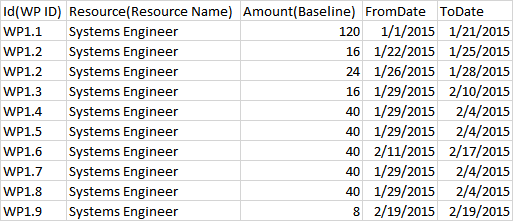
· Rem Res CSV contains time phased data for an EV element’s Remaining work and cost assignments
· Baseline Res CSV contains time phased data for an EV element’s Baseline work and cost assignments
o “ID” is the EV element’s Unique ID used to match the Microsoft Project record to the record in Cobra.
o “Resource Name” is the name of the assigned resource in Microsoft Project. This must match the name of a resource in the Cobra resource library.
o “Amount” is taken from Microsoft Project’s time phased baseline or remaining “Task Usage” data set
o “From/To Date” is taken from Microsoft Project’s baseline or remaining Start and Finish for the task containing the assignment.
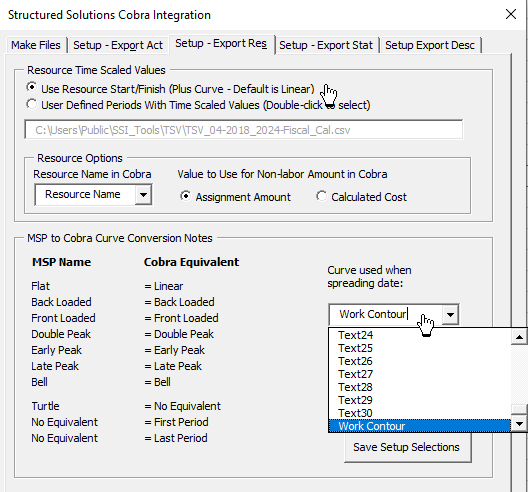
The Tab named Setup Export Res determines:
o The Microsoft Project Resource field is used for the Resource Name in Cobra.
o The Value to Use for Non-labor Amount in Cobra.
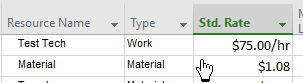
§ When using Assignment Amount for non-labor, SSI Tools uses the Amount, or Units, of non-labor instead of Units times the Standard Rate.
§ When using Calculated Cost, the Units times the Standard Rate is used
Baseline and Remaining Resource CSV Files
Setup for Baseline and Remaining Resource CSV Files
Steps
Description / Image
Make a Combined Activity and Resource Transaction Files for use with Deltek Cobra™
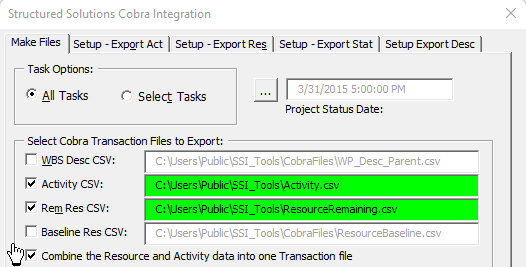
When you select both an Activity CSV and either Rem Res or Baseline Res CSV, you can combine the data from the Activity and the Resource file into one import transaction file by selecting the option named Combine the Resource and Activity Data into one Transaction file. This gives you the option to import Activity and Resource data from separate CSV files or you can use the combined file to import both together.
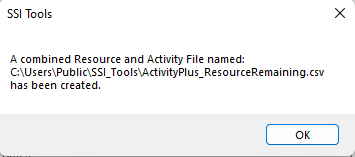
When using this option, one additional file will be created containing named ActivityPlus the name of your Resource file
Setup Requirements for Combined Resource and Activity file:
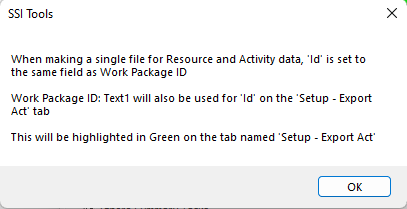
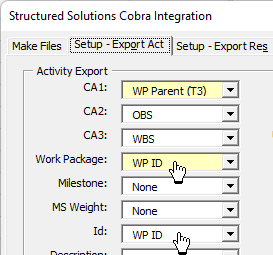
When you check the option named Combine the Resource and Activity Data into one Transaction file, SSI Tools will check to be sure Work Package and Id on the Setup – Export Act tab are set to the same field in the project. If not, a message box will remind you to set these two options to the same field.
Note - having Work Package and Id set to the sameproject fields is only required if you combine the Activity and Resource data files.
Resource Time Scaled Values
The Tab named Setup - Export Res includes an option to spread the resource amounts across the Start and Finish dates for work packages.
· Use Resource Start/Finish (Plus Curve) makes a simple transaction file that gives the amount of each resource assignment plus the baseline or remaining start & finish period for the resource assignment amount.
· You can apply a Curve or Work Contour to the spread of resource assignment values using the control named Curve used when spreading (by) date.
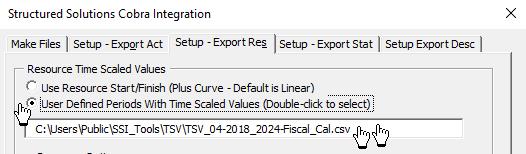
The Tab named Setup - Export Res also includes an option to select User Defined Periods for Baseline or Remaining Resource assignment
o User Defined Periods with Time Scaled Values makes a detailed transaction file showing the amount of a resource assignment in each reporting period according to the selected Defined Periods Table.
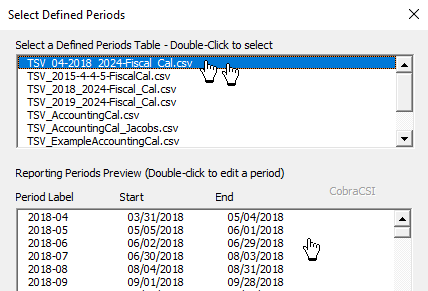
1. Double-click User Defined Periods with Time Scaled Values to select a defined periods table.
2. Double-click a Defined Periods Table to see its Period Label, Start and End
3. Select the System Location for Defined Periods if needed
Note: Sample Defined Periods Tables are included with SSI Tools at c:\Users\Public\SSI_Tools\TSV (or the SSI tools install location). User defined periods can be edited using the Preview form or you can make and edit this table using Microsoft Excel as long as they are saved as .csv files and their name begins with “TSV_” like the examples shown above.