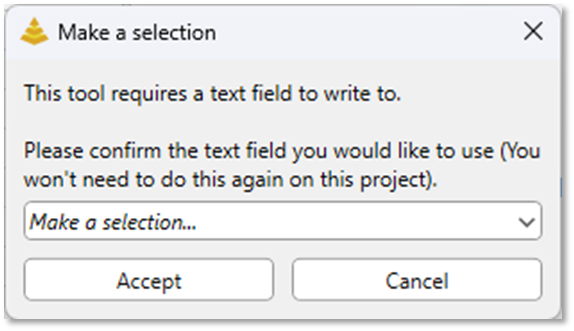
If you click the Get Driving Path, Get Driven Path, or Get Both Paths buttons or attempt to open the Directional Path Tool from in a project where the Directional Path Tool has not yet been used, a dialog will appear informing you that the tool requires a Text field to write results into. You’ll be prompted to select which text field you’d like to use. No Directional Path analysis can be run until a valid text field has been assigned for output.
Once you click Accept after selecting a Text field, your selection is saved to the project. As long as the project file is saved, you will not be prompted with this dialog again when using the Directional Path Tool in that project. You can change the Text field saved to the project by changing the Trace Log Field within the Logging section of the Directional Path Tool form: