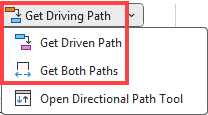
The Directional Path Quick Access buttons are the buttons on the SSI Analysis Tools ribbon that will allow you to run a Directional Path without needing to open or configure a UI.
Using the “Get Driving Path” Button
Clicking the Get Driving Path button in the SSI Analysis Tools Ribbon instantly runs a Driving Path to the activities(s) currently selected in the schedule. The Driving Path of the first activity selected will automatically be displayed in the Gantt Chart after the button is clicked.
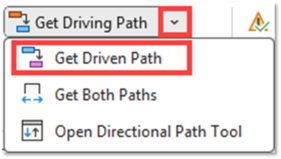
Using the “Get Driven Path” Button
Clicking the Get Driven Path button in the Directional Tools Menu instantly runs a Driven Path from the activities(s) currently selected in the schedule. The Driven Path from the first activity selected will automatically be displayed in the Gantt Chart after the button is clicked.
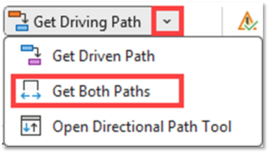
Using the “Get Both Paths” Button
Clicking the Get Both Paths button in the Directional Tools Menu instantly runs both a Driving Path and a Driven Path of the activities(s) currently selected in the schedule. The Paths of the first activity selected will automatically be displayed in the Gantt Chart after the button is clicked.