Post Project Data to the SSI Project Performance Database
Post Project Data to the SSI Project Performance Database
The Project Performance Database captures Planned Value, Earned Value and the Estimate to Complete from the current Microsoft Project schedule from one or more reporting periods. The Actual Value for EVM Work and Cost can come directly from the project or it can be imported from an external source.
If the database contains data from one reporting period, only Cumulative Earned Value reporting is possible. If data from two or more reporting periods is posted to the database each is stored separately. This enables Current Period and Cumulative Earned Value Reporting since current period earned value is always equal to current cumulative values minus the cumulative values at the end of the prior period.
The database keeps separate record sets for each project and for each project’s reporting periods. Having two or more record sets enables current period as well as cumulative earned value reporting and the Baseline data from the current and prior periods can be inspected for changes.
Cumulative and Current Period EV shows planned value, earned value and actual value in the current period by subtracting cumulative values from the prior period from cumulative values in the current period.
Make Change Log compares data from the prior reporting period to data from the current reporting period and finds Added Work Packages, Deleted Work Packages and Changes to the Baseline Start date, Finish Date and Baseline Resource Assignment values. Adds, Deletes and Changes are recorded in a change log Excel worksheet that is included with an Earned Value report.
Steps
Description / Image
Post Current Period Data into a new or existing Database for reporting Earned Value
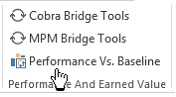
· Click Performance Vs. Baseline on the Performance And Earned Value group of the SSI Analysis Tools ribbon in Microsoft Project
1. Connect to an existing database or make a new one by entering a database name and location
· Name and Location for Metrics Records and Reporting Database can be a new value entered by the user or it can map to an existing record set for projects and reporting periods
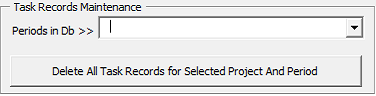
· Task Records Maintenance shows existing Project and Periods in the Database. If necessary, use this control to Delete All Task Records for the selected project and reporting period
Enter a name and location for the database. If the database does not exist, a new one will be created using the name and location provided
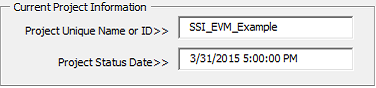
2. Enter Project Unique Name or ID
· Record sets in the Database are stored separately by their Project Unique Name or ID and the reporting period
· Each Project should have its own Project Unique Name or ID to prevent data from one project from mixing with data from another project
· Project Unique Name or ID is taken from the Project’s Summary Title. Display the Project’s Summary (Format menu / Summary Task) or select Project Information from the File menu to view or change the summary title
· Double-click Project Status Date to open the Project Information form and select a Status date for the project
Name of Project and Reporting Period in Database
Note – The Project Status Date should match the Current Period End Date in the section below
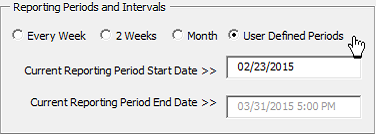
3. Select Reporting Periods and Intervals
· Select one of the reporting intervals (Every Week, 2 Weeks, Month or User Defined Periods*)
· Current Reporting Period End Date is taken from the Project’s Status date
· Current Reporting Period Start Date is determined by the reporting interval
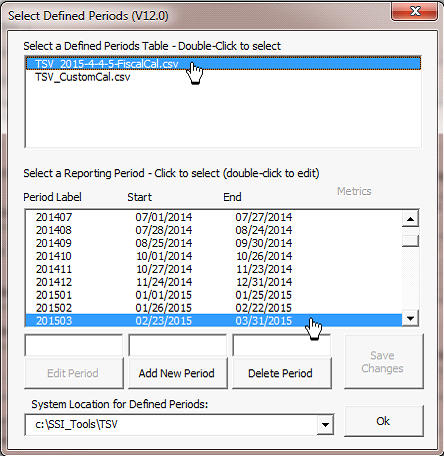
*If User Defined Periods is selected, a list of custom calendars is displayed. Select or create a Defined Periods table and pick from the list of Reporting Periods if using this option
· Double-click Select a Defined Periods Table to see its list of Periods, Start and End dates in a table
· Select a Reporting Period to use its Period Start and End date as the current period
· The default System Location for Defined Periods is the installation location for SSI Tools. That location will contain sample Defined Periods record sets in a folder named “TSV”. Another way to make your own defined periods tables is by using Excel to open the example files, edit them in Excel and save as a Comma Separated Values file format with a name that begins with “TSV”
Reporting Intervals and Current Period Start and End Date
Note –the Current Period End Date should match the Project Status Date in the section above
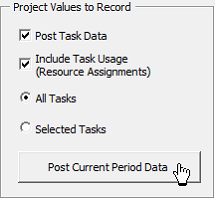
4. Click Post Current Period Data
· Post Task Data records information about tasks in the schedule
· Include Task Usage adds information about the resources assigned to tasks, if they exist
· Select All Tasks to post information about each tasks in the active schedule or Selected Tasks to post data for the tasks in the current selection
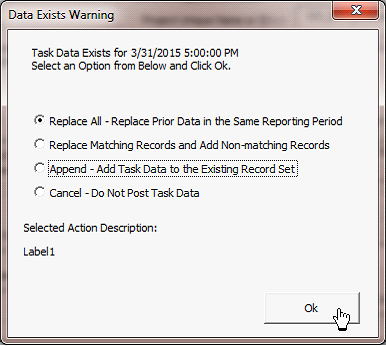
Data Exists Warning appears whenever data for the project in the same period is found in the database
· Replace All completely removes data for the period and replaces with current records. Use this option if significant changes have been made to the project tasks and a complete new record set is desired
· Replace Matching Records is a good option to use if you are correcting just one or a few tasks in the project and want to preserve all other records in the reporting period
· Append is useful when you want to add more task to the existing record set in the database
· Cancel allows you to exit to posting operation and go back to the previous form
Select which tasks to post to the database.
Choose how to handle existing data if SSI Tools finds records for the same project in the same reporting period