Many-to-One Work Package Considerations
Using One-to-One and Many-to-One options
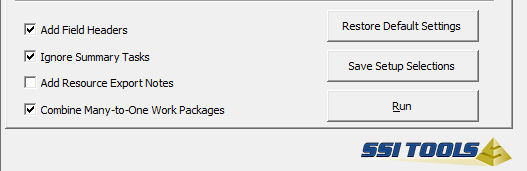
One or more tasks in the Schedule can roll-up to a single Work Package item in the EV system when you use the option named Combine Many-to-One Work Packages on the tab named Make Files.
With this option selected the Budgeted Cost of Work Scheduled (BCWS), the Estimate to Complete (ETC) and the Budgeted Cost of Work Performed (BCWP) are rolled-up to a common Work Package ID as follows:
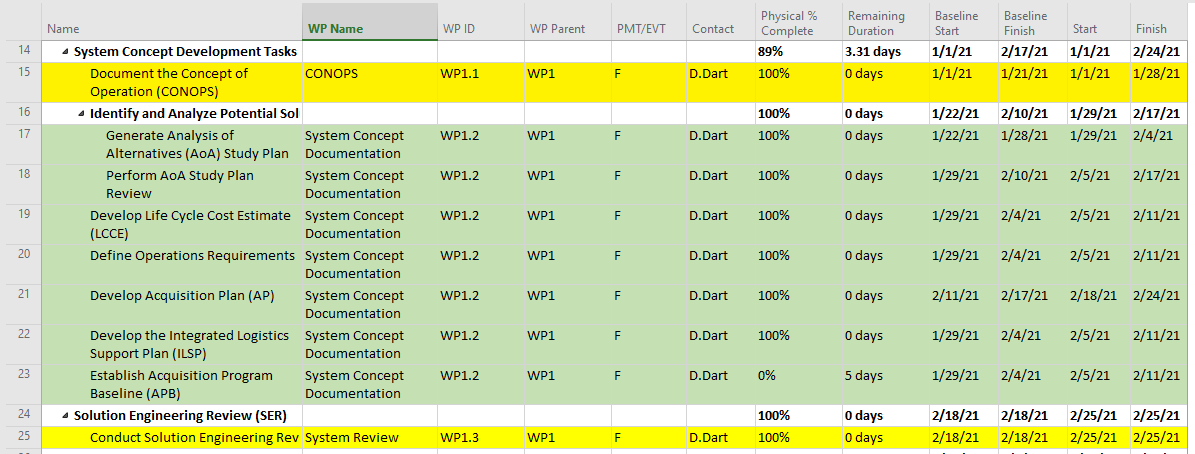
Figure 1 - Using the Many-to-One option for Work Packages, shows and example of a project using the Many-to-one Work Package option. In this example, some tasks map one-to-one to work packages and others map many-to-one. It is important to note that tasks do not rollup to their respective Work package or Control Account by project summary tasks. Instead, SSI Tools uses codes to determine how to combine and structure tasks for the EV system. All the highlighted tasks below rollup to WP1 (the code in WP Parent) based on having a common value in that field. Task 15 is a one-to-one Work Package, meaning one Task = one Work Package. The same is true for Task 25. Even though Tasks 17 – 23 do not rollup to a common summary task in the schedule, they do, in fact, rollup to the same Work Package (WP1.2) and the same Control Account (WP1) via the codes in WP ID and WP Parent.
When using the Many-to-one option, SSI Tools finds all the tasks in the schedule with the same Work Package ID (WP ID in the example). Whenever this is the case, SSI Tools summarizes tasks by their Work Package ID and provides data in its .csv files as follows:
· Minimum Baseline and Forecasted Start.
· Maximum Baseline and Forecasted Finish.
· Work and Cost are summarized by Resource and Work Package ID and will be distributed by Accounting periods exactly as the work and cost is distributed in the project.
· Status for BCWP is rolled up according to each task’s weight, which can be determined by its Baseline Duration, Baseline Work, Baseline Cost or by Explicit Weights entered by the user for each task in a many-to-one group. See the Many-to-One Status Example on the next page to understand how BCWP is determined when Many-to-one work packages exist in a project.
Many-to-One Status Example
· Each of the tasks in the table below are given the Work Package ID of WP2.4.
· This work package is using the Percent Complete (letter “C” in Cobra) Performance Measurement Technique or PMT.
· All tasks in a Many-to-one work package must have the same PMT as well as the same Control Account, Control Account Manager, Organizational Breakdown Structure and Work Breakdown Structure
· The Percent Complete PMT is recommended when using Many-to-one work packages that span more than 2 accounting periods. The performance calculations below only apply when PMT is Percent Complete.
o In the example below, the sum of all baseline durations for the Many-to-one Work Package WP2.4 is 103 baseline days.
o Once all the individual WP2.4 tasks are 100% complete, 103 of 103 baseline days of work will have been performed and the work package itself is assessed as 100% complete – BCWP = 100%
o By multiplying Physical % Complete by the baseline duration for the individual tasks, the BCWP Contribution of each task is determined.
o In this example, 11 of 103 baseline days of work has been performed, therefore 11/103 = 10.7% BCWP
|
Name
|
Control Account
|
WP ID
|
Sum of Baseline Duration
|
Physical % Complete
|
BCWP Contribution
|
|
Review CONOPS & Requirements Documents
|
CA-2
|
WP2.4
|
2
|
100%
|
2
|
|
Review System Environment and I/O Requirements
|
CA-2
|
WP2.4
|
1
|
100%
|
1
|
|
Evaluate Infrastructure and Environmental Aspects
|
CA-2
|
WP2.4
|
10
|
10%
|
1
|
|
Develop Test and Evaluation Master Plan (TEMP)
|
CA-2
|
WP2.4
|
20
|
5%
|
1
|
|
Create Security Requirements Traceability Matrix
|
CA-2
|
WP2.4
|
10
|
10%
|
1
|
|
Create Plan of Action & Milestone (POA&M)
|
CA-2
|
WP2.4
|
10
|
10%
|
1
|
|
Initiate Development of System Security Plan (SSP)
|
CA-2
|
WP2.4
|
10
|
10%
|
1
|
|
Develop Security Risk Assessment (SRA)
|
CA-2
|
WP2.4
|
5
|
0%
|
0
|
|
Develop Security Test & Evaluation (ST&E) Plan
|
CA-2
|
WP2.4
|
5
|
0%
|
0
|
|
Develop Service Level Agreements (SLA)
|
CA-2
|
WP2.4
|
15
|
10%
|
1.5
|
|
Develop Disaster Recovery Plan
|
CA-2
|
WP2.4
|
15
|
10%
|
1.5
|
|
WP ID: WP2.4
|
|
|
103
|
|
11
|
Note - When using X/Y, % Start/% Finish, PMTs, the X % is earned as soon as any one of the individual tasks has started and the Y% is only taken only when all the individual tasks are complete.
Special Setup in the project when using the Many-to-One option
|
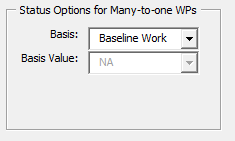
On the tab named Setup Export Stat you can specify how to weight tasks in a many-to-one group for determining BCWP. Options include Baseline Work, Cost or Duration. You can also enter an Explicit weight in a number field.
Each task’s Weighted Percent Complete, relative to all tasks in the many-to-one group, determine BCWP for the Work Package in total.
|
|
|
|
|
|
Setup for Work Package Names (or Description)
On the tab named Setup Export Act you must specify a text field where the Description for each Work Package is entered. You can’t use Project’s Name field since it is likely to be different for all the tasks in a many-to-one group. Therefore, you must put a common name in a text field.
Figure 1 - Using the Many-to-One option for Work Packages shows the common name for rows 17 – 24. Even if a task is not part of a many-to-one group, you still must put a Work Package name in a text field since SSI Tools will get the work package description from the text field for all work packages regardless of one-to-one or many-to-one usage.
Setup for Id
Id is used to link the Activity CSV to the Resource CSV, therefore, when using the many-to-one option, you can’t use project’s Unique ID for this purpose since each task in a many-to-one group would have a unique id if you did. The Work Package ID is often a good choice for Id when using many-to-one.
Other Considerations when using many-to-one
· Performance Measurement Techniques (PMT/EVT) should be the same for all the tasks in a many-to-one group.
· Control Account Manager (CAM) should be the same for all the tasks in a many-to-one group.
· Control Account (the parent of the Work Package) should be the same for all the tasks in a many-to-one group.
|
|
Figure 1 - Using the Many-to-One option for Work Packages.
Figure 2 Cobra Activity Import file with rollups – colors show how tasks in schedule rollup to Cobra import data