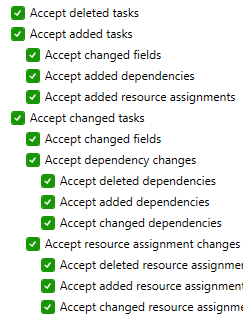
The General tab of the Change Importer Settings form allow users to select what will be used as the Tracking Unique IDfield as well as well as options for which types of changes they wish to import.
Tracking Unique ID Field Selection
Set this selection to whatever field the recorded project uses as the Tracking Unique ID for tasks and resources.
The check boxes in this section will allow you to select which types of changes you would like to accept when importing. The following options are available:
Accept deleted tasks - If this option is checked, the Change Importer will be able to accept any deleted task changes.
Accept added tasks - If this option is checked, the Change Importer will be able to accept any added task changes.
Accept changed fields (added tasks - If this option is checked, the Change Importer will be able to accept changes to any fields (such as duration, text1, text2, etc) on added tasks.
Accept added dependencies - If this option is checked, the Change Importer will be able to accept any added predecessors or successors to added tasks.
Accept added resource assignments (added tasks) – If this option is checked, the Change Importer will be able to accept any added assignments to added tasks
Accept changed tasks - Checking or unchecking this options will check or uncheck all of the indented options below it related to accepting changes to existing tasks.
Accept changed fields (existing tasks) - If this option is checked, the Change Importer will be able to accept changes to any fields (such as duration, text1, text2, etc) on existing tasks.
Accept dependency changes - Checking or unchecking this options will check or uncheck all of the indented options below it related to accepting dependency changes to existing tasks.
Accept deleted dependencies - If this option is checked, the Change Importer will be able to accept changes any deleted predecessors or successors from existing tasks.
Accept added dependencies - If this option is checked, the Change Importer will be able to accept changes any added predecessors or successors from existing tasks.
Accept changed dependencies - If this option is checked, the Change Importer will be able to accept any changes to dependency relationship types (FS, SS, FF, SF) and lags on existing dependencies on existing tasks.
Accept resource assignment changes - Checking or unchecking this options will check or uncheck all of the indented options below it related to accepting assignment changes to existing tasks.
Accept deleted resource assignments – If this option is checked, The Change Importer will be able to accept resource assignments that were deleted from existing tasks.
Accept added resource assignments (existing tasks) – If this option is checked, the Change Importer will be able to accept resource assignments that were added to existing tasks.
Accept changed resource assignments – If this option is checked, the Change Importer will be able to accept changes made to existing resource assignments on tasks, such as work or cost.
Accept set Baseline Plans – If this option is checked, the Change Importer will be able to accept Baseline Plans that were set with MS Project’s Set Baseline tool.
Accept set Interim Plans – If this option is checked, the Change Importer will be able to accept Interim Plans that were set with MS Project’s Set Baseline tool.
Accept cleared Interim Plans – If this option is checked, the Change Importer will be able to accept Interim Plans that were cleared with MS Project’s Set Baseline tool.