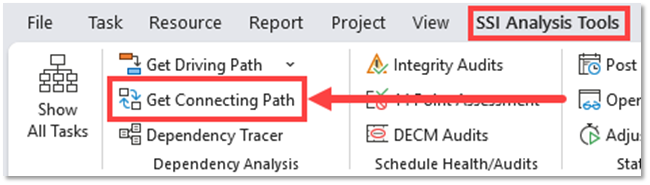
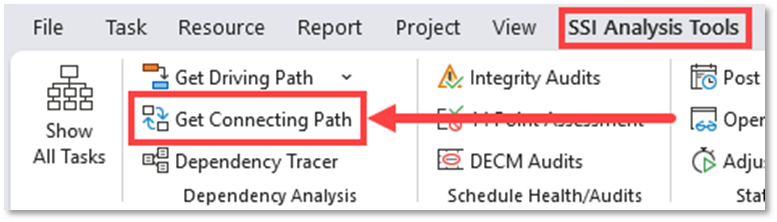
You can instantly get a Connecting Path between two activities in the schedule by using the Get Connecting Path button in the SSI Analysis Tools Ribbon:
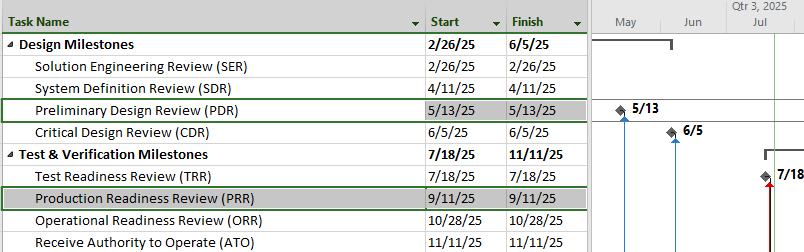
Before clicking the button, you must select exactly two tasks in the schedule you wish to see a Connecting Path between. You can click any cell within each task’s row (you don’t need to select the entire row), as long as each task is part of the selection. Hold down the CTRL key on your keyboard to select both tasks simultaneously.
The following steps outline the quickest method to use the Connecting Path tool to get a Connecting Path between two activities in the Schedule:
Select the two activities you wish to see the Connecting Path Between
Click the Get Connecting Path Button in the SSI Analysis Tools Ribbon
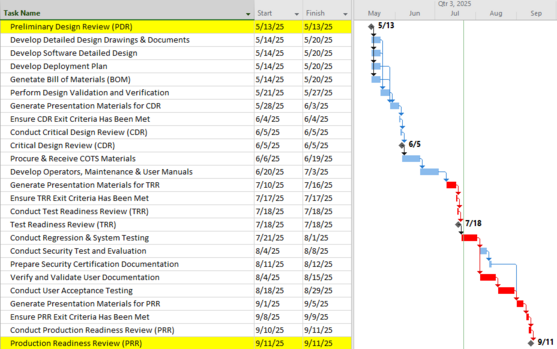
Output is shown in the Gantt Chart:
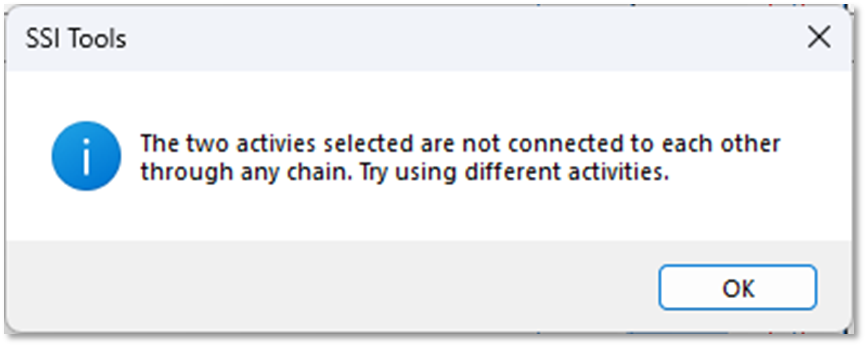
If the two points selected are not connected to each other through any dependency chain, a message will be displayed informing you there is no connecting path between them:
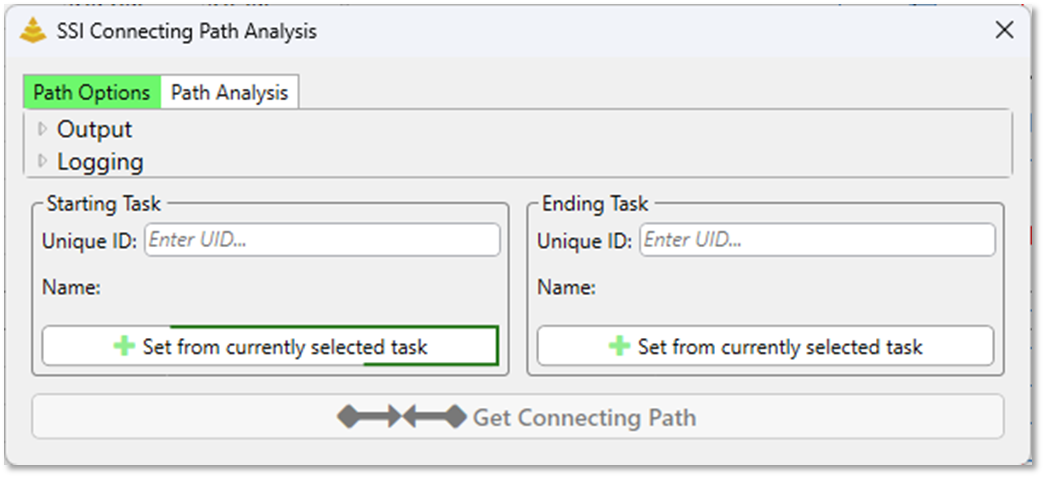
If less than or more than two activities are selected when the Get Connecting Path button is clicked, the Connecting Path Tool will not be able to identify which activity should serve as the starting point and ending point, and the Connecting Path Tool form will automatically open, allowing you to manually assign the starting and ending points, irrespective of the current selection in the Gantt Chart.