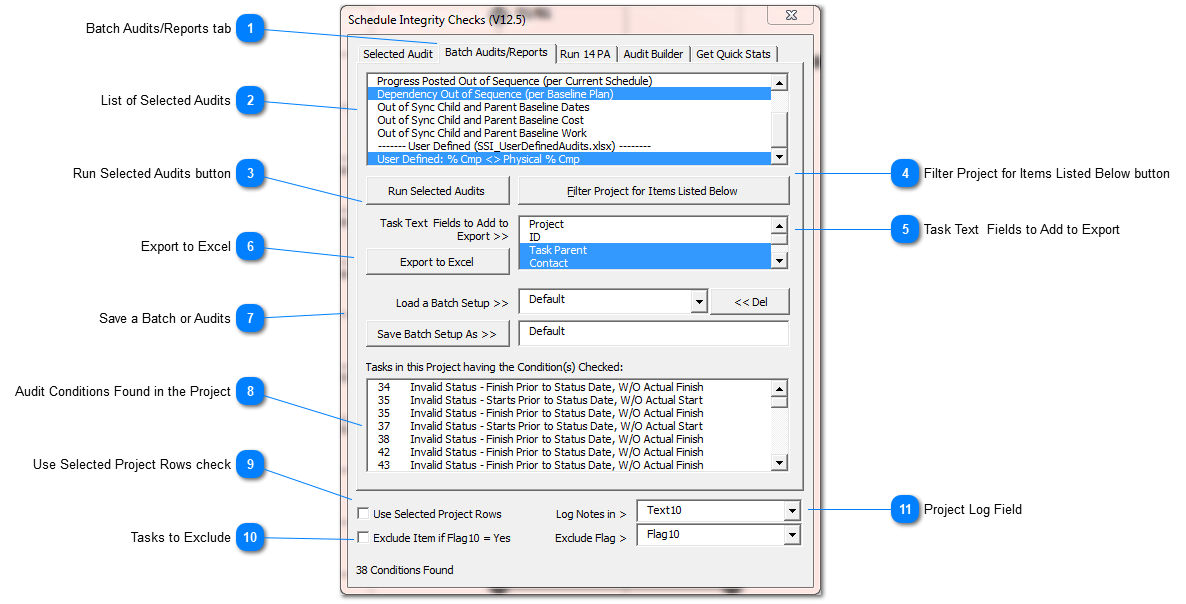
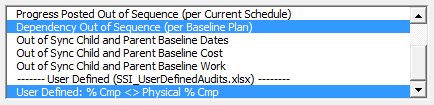
Whenever you need to test a project for many conditions all at once, use the Batch Audit/Reports tab of the Schedule Integrity Audit tools. After testing for one or more conditions, you can filter the project for those items or export the results to an Excel workbook.
This button becomes active when SSI Tools completes its audit of the project. Press it to filter the project showing only tasks that meet audit conditions
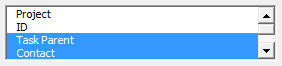
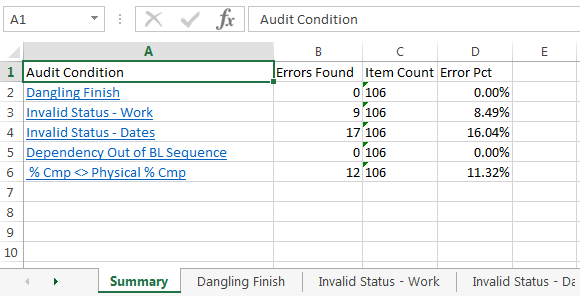
The button named "Export to Excel" becomes active when SSI Tools completes its audit of the project. Press it to make an Excel workbook of audit conditions showing a summary report and an individual worksheet for each audit condition. The selections you make using the list named "Task Text Fields to Add to Export" will be included in each audit conation detailed worksheet
You can set a project flag field - "Yes" to create a permanent exclusion to the Audit inspection. Excluded tasks will be ignored by SSI Tools as it audits the project. You must also check the option named "Exclude Items if" to use the exclude feature.
Select a Project Text field for SSI Tools to log audit results. Make sure you select a text field not used for any other purpose since it will be overwritten by SSI Tools if you use this feature.