Correction – Correction of Data type mismatch and Syntax error (missing operator in query expression) import failure in QBD Import.
Detailed Explanation
Data type mismatch error was due to the incorrect value for Task Weight being passed to the procedure that adds steps to the database. Syntax error (missing operator in query expression) was related to having an apostrophe in the Task or Step Name. This version corrects the Task Weight value and adds handlers for apostrophes
Build Release
13.4.9 05/17/2021
Released Before 13.4.9
Change Number
13.4.QBD01 – QBD Status Form Update
Correction, Change or New feature
Change – New form layout and better automation of QBD Step Status Form
Detailed Explanation
1. Added Task navigation to QBD Step edit form using Task spin up/down button
2. Removed Sum of Values from this form since Sum of step value it is already on the main form having the same meaning.
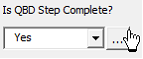
3. Added toggle button for Is QBD Step Complete? – was labeled Step Actual Finish
4. Added an option to Update Physical % Complete when updating steps. This option bypasses the message asking the user to match physical % complete for the task to the value of completed QBD steps
5. When the last QBD step is complete, the user is prompted for a task actual finish date.
Build Release
13.4.3
Change Number
13.4.QBD02 – Allow Percent Complete in Number Fields and Enabled task weight
Correction, Change or New feature
Change – Enabled Percent Complete field options and allow a user to assign a task weight
Detailed Explanation
1. The project field used for Task Percent Complete (Field for Task % Cmp) was disabled in prior versions only allowing Physical % Complete. This control is now enabled and includes options for Number1-20
a. When the user selects a Number field for Task Percent Complete (Field for Task % Cmp), an option named “Tasks with QBD have a weight to determine % Cmp” becomes visible.
b. If the user checks “Tasks with QBD have a weight to determine % Cmp”, then the options for selecting a task weight number field becomes visible.
i. If the user selects “Use QBD Steps form” for recording Task Weight, the weight value will only be recorded in the QBD tool – not in a task field.
ii. If the user selects a number field for recording Task Weight, the weight value will be recorded in a task number field.
iii. In either case (i or ii), the task list will show Task Weight (Task Wght) in its last column.
iv. When tasks have weight, the value of completed QBD steps will be multiplied by the Task Weight to determine Task % Complete.