All data in the Dependency Tracer tables can be exported to an Excel Spreadsheet by clicking the Export to Excel button on the upper right side of the Dependency Tracer:
Excel exports generated by the Dependency Tracer contain two worksheets: a Simple View and a Raw Data view.
The Simple View Sheet
The Simple View presents data from the Dependency Tracer in a clean, easy-to-read format. Its layout mirrors the Vertical arrangement of the Dependency Tracer, with the Currently Selected Task at the top, Predecessors in the middle, and Successors at the bottom. This view is ideal for quick, at-a-glance analysis and for copying and pasting information into other applications, such as Outlook messages.
The Raw Data View
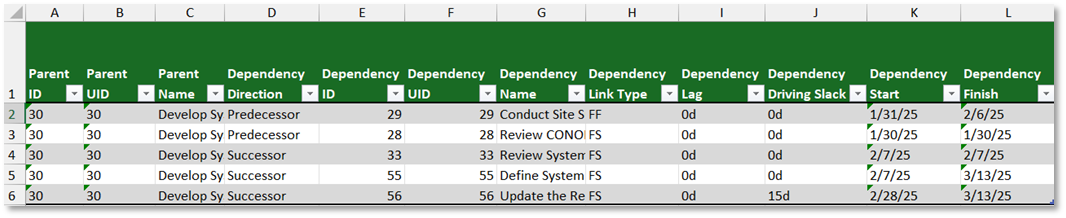
The Raw Data sheet presents the Dependency Tracer’s data in a structured, analysis-friendly format designed specifically for data processing and reporting. Unlike the Simple View, which emphasizes readability, the Raw Data sheet organizes information in a flattened, tabular layout that makes it easier to sort, filter, and summarize. This format is ideal for building pivot tables, generating charts, or performing custom data analysis in Excel.
All Dependency Tracer Excel exports include the data visible from the current Dependency Tracer Configuration and are saved in [SSI Tools Installation Location]\Exports\Dependency Tracer. Each export is timestamped with the date and time it was created.