The Task End date tool is built to allow users to adjust the finish date of a selected task to a date chosen by the user. In Microsoft Project,the finish date of an Auto Scheduled task is determined by its start date + its duration. When entering a date in the Finish field of a task, Microsoft Project will automatically put a Finish-No-Earlier-Than constraint on the task. Microsoft Project does not change a task’s duration when a user enters a date in the Finish field. Instead, Project will do one of the following actions:
If the task is in progress, Project will split the task.
If the task has not started, Project will “pull” the task to the finish date, causing the start date of the task to change.
This behavior is generally not the intention of a user entering a date in the Finish field. The SSI calendar tool increases or decreases a task's duration to reach the selected end date Usually, users intend to maintain the current start date of the task and have the duration of the task grow or shrink to meet the desired finish date. Because this is not the default behavior of Microsoft Project, SSI created the Adjust Task End Date tool.
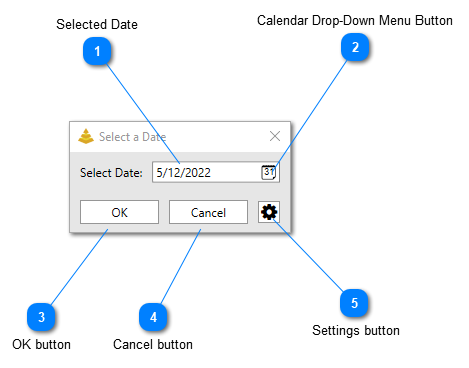
Selected Date
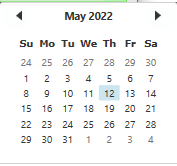
This shows the currently selected date inputted by the user. This is the date the tool will adjust the selected task's finish date to when the OK button is clicked. The desired date can either be typed in or selected from the calendar drop-down
Clicking this button will adjust the currently selected task's finish date to the selected date without adjusting the task's current start date or applying a constraint
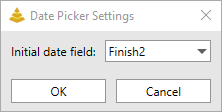
Clicking on the settings button open the Date Picker Settings dialog. This dialog will allow a task finish field other than Finishto be selected as the initial date populated whenever the Adjust Task End Date tool opens. By default, this is set to the task Finish field, but it can be set to any field that holds date data in the project