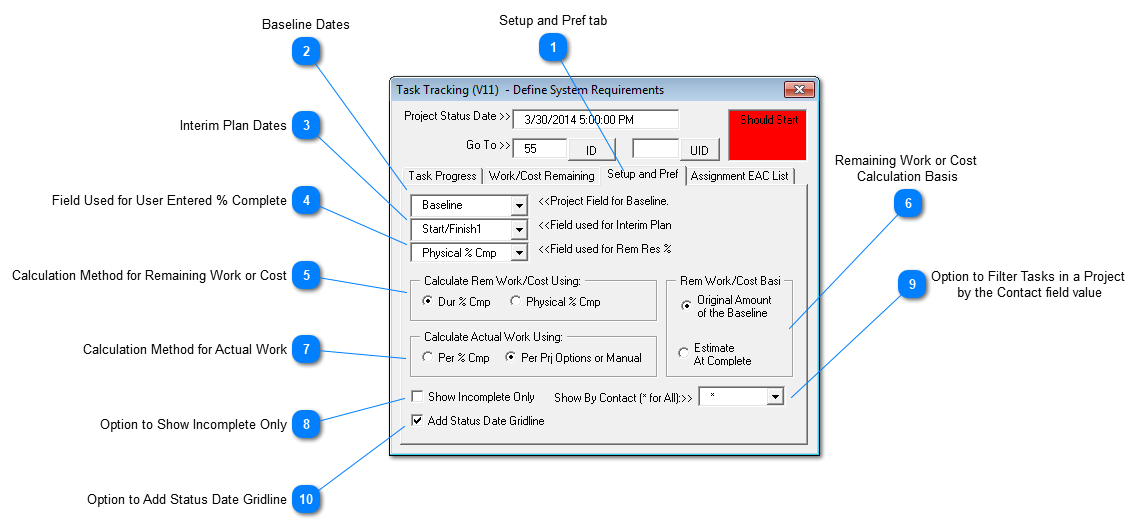
Enter a alternative percent complete value field that can be used to determine remaining work/cost values. The value entered in this field can be used as an alternative to Microsoft Project's duration based percent complete value for calculating remaining work or cost on in progress tasks.
The calculated value of remaining work or cost for a in progress task can be derived using the duration based percent complete calculated by Microsoft Project*. Alternatively, you can derive remaining work or cost values using the percent complete you enter manually for a task.
Microsoft Project automatically calculates "duration based" percent complete using this formula: % Complete = Remaining Duration / Total Duration (where total duration = elapsed duration plus remaining duration).
The basis for remaining work or cost is value used as the assumed "total" work or cost for the task.
Assume the work or cost basis is the Original Amount of the Baseline for the Assignment. If the baseline value is 100 hours and the task is 75% complete, then it will be assumed that 75 hours have been consumed and 25 hours are assumed to be remaining.
The option named Estimate at Complete (EAC) ignores baseline values and calculates an independent EAC using the percent complete and the remaining work or cost values prior to any updates. Suppose, for example, a task was 25% complete (therefore 75% is incomplete) and had 30 hours of work remaining. Its EAC would be determined mathematically via: EAC = 30 / 75% or 40 hours. In other words, if it takes 30 hours to perform 75% of the task then it is likely to take 40 hours to complete 100% of the task. In this example, MS Project will show 10 hours of actual work and 30 hours of remaining work for a total of 40 hours. Since SSI's EAC values are captured before any updates are made, the tab named Assignment EAC list shows these calculations for reference.
Actual work values for each resource assignment to a task can be calculated using one of these methods:
Automatically determined based on the percent complete via the selection in the option group named Calculate Rem Work/Cost Using which is described in the topic above this one.
Automatically determined based on other Options you have set using Microsoft Project options