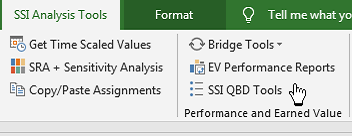
2. Double-click QBD DB on the tab named QBD in Active Project to set the location of the SSI Analysis Tools Database. If this database already exists, SSI Tools will use it. If the database does not exist in the selected system location, SSI Tools will create and new empty database for QBD.
3. Select the method you use to identify tasks that require QBD steps. The drop-down list in this section provides some popular methods such as “Baseline Days >44” and “Cobra Letter Codes”. You can also just type in your own criteria. You can even change the numeric part of the “Baseline Days >” option. If you select anything other than the Baseline Days option, you will need to specify the project field where the value will be found.
4. Select the option to List Incomplete Tasks for QBD or Include Completed Tasks to show tasks that require QBD steps in a list displaying their Unique ID (as U ID), Name, Start, Finish and Physical % Complete (as % Cmp)
5. Select a task in the list to see its QBD steps in the list below the task names
6. If QBD steps exist for a task, double-click a Step to Edit or Post its completion status
7. If no QBD steps exist for a task, or to add a new step, click the button named Add Steps. You can even add steps using a Template that may contain a standard set of steps for certain task types.