Importing Enterprise Fields Using the Import Wizard
Users are able to import Enterprise Field data via an Excel spreadsheet, given the spreadsheet is formatted properly. Before importing, a user must ensure they have an Excel workbook that exists on their file system that contains a spreadsheet with columns for Enterprise Field Name, Department, Entity, and Data Type.
Data Source
This text box shows the current data source the Import Wizard is reading.
Click this button to browse to a data source. Locate the desired file in the Windows File Explorer, then click Open. Files chosen can only be Excel files.
The selected data table represents the worksheet in the workbook the Import Wizard will be reading from. To change the worksheet, click the Data Table drop-down menu and choose the desired worksheet.
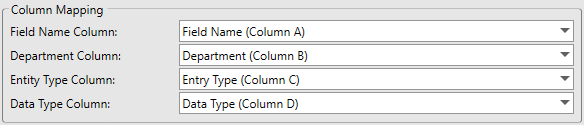
Use these controls to map the proper columns from the Excel spreadsheet to the appropriate Enterprise Field properties. 1. To change a column mapping, click the column drop-down menu and choose the desired column.
This section of the Import Wizard shows a preview of what the imported data values will be. Users should be sure the data is correct prior to clicking the bottom Import... button.
Click this button to import the Enterprise Field data to the Enterprise Fields list in the Enterprise Fields Setup Dialog. If the data import was successful, rows in the Enterprise Fields Setup dialog will automatically be filled in with the data from the existing spreadsheet.