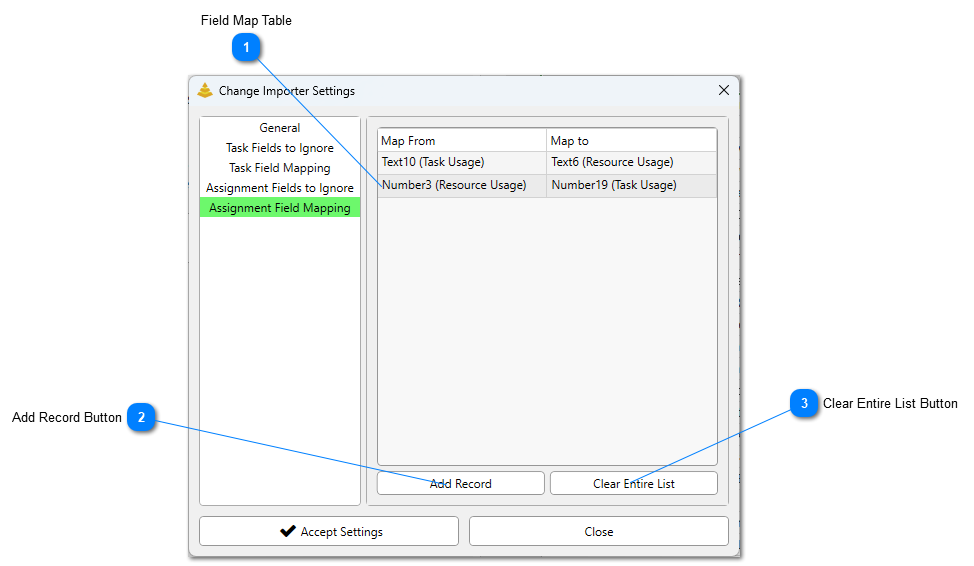
The Assignment Field Mapping Tab allows users to create a field mapping for assignment fields. A field mapping let the Change Importer know that any changes made to Field X shall actually be replicated in Field Y.
Field Map Table
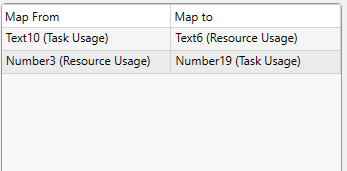
The Field Map Table will display what fields are being remapped. The Map From column represents the field where a change will have been originally made. The Map To column represents the field where the change will actually be replicated in. In the example above, we see that any change made to Text10 Task Usage field viewwill be replicated in the Text6 Resource Usage field. Changes made to Number3 Resource Usage field will be replicated in the Number19 Task Usage field.
A row can be deleted from the table by clicking on it and pressing the DELETE key on the keyboard.
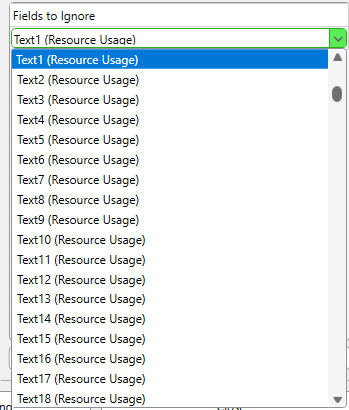
An item can also be changed to a different field by clicking on it and then opening the menu that appears:
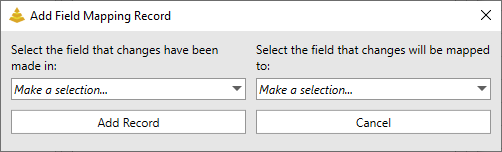
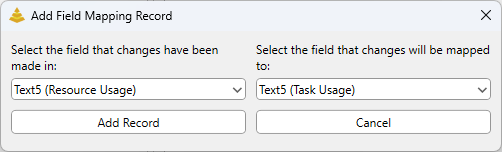
Click this button to add a new field mapping to the table. Clicking this button will open this form:
Click the drop-down buttons on the selection boxes to choose fields to map. The selection on the left will represent the field where a change will have been originally made. the selection on the right will represent the field where the change will actually be replicated in.
To add the field mapping to the list, click the Add Record button. Click Cancel to exit.